

Table of Contents
Q3 2026 Release Notes
July - September 2026
This quarter focuses on clearer monitoring workflows, faster ways to find and review footage, and more control over cameras and TetherBoxes. Follow the linked help articles for setup and full reference material.
Live View and Presets
A more flexible Live View: Choose layouts for standard, wide and portrait screens; drag cameras between tiles; and open a camera, its events, site or TetherBox in a new tab without interrupting the wall. The picker is easier to use with long camera names, multiple timelines and touch screens.
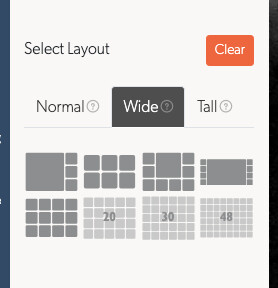
Better on phones and tablets: Tap to show controls, pinch to zoom and drag a zoomed picture. Double-tap for fullscreen, with the last frame held while the wall reconnects. Picture-in-picture appears only when the browser and stream support it.
Timelapse playback stays within reach: The scrub bar remains visible below the camera layout on short landscape phone screens.
Saved views, searches and timelapses now work consistently: Save personal or shared Events, Live View and Timelapse presets; keep a deliberate zoom or pan in a saved wall; and cycle a group of walls automatically. Shared walls always respect each viewer's camera access.
Sharing a saved preset is clearer: Moving a personal preset into Shared with Others immediately removes the empty-state message.
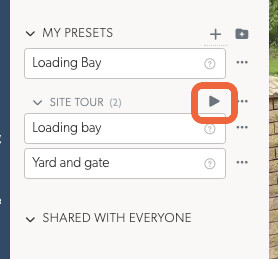
Saved searches stay in context: A search saved while viewing all timelines remains available there instead of being filed under one timeline.
Talkdown and deterrents in context: Trigger supported camera lights, speakers and sirens from Live View, and see only the Talkdown controls and announcements that are available to that camera. See Talkdown.
Events and Investigation
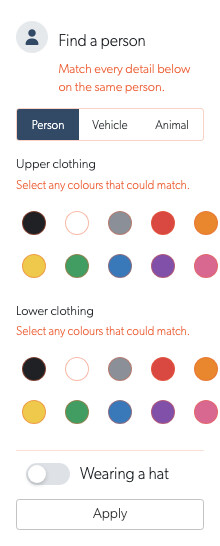
Find people by appearance with TetherX AI: Search for clothing colours and hats, with every selected detail matched to the same person. This requires TetherX AI on the camera.
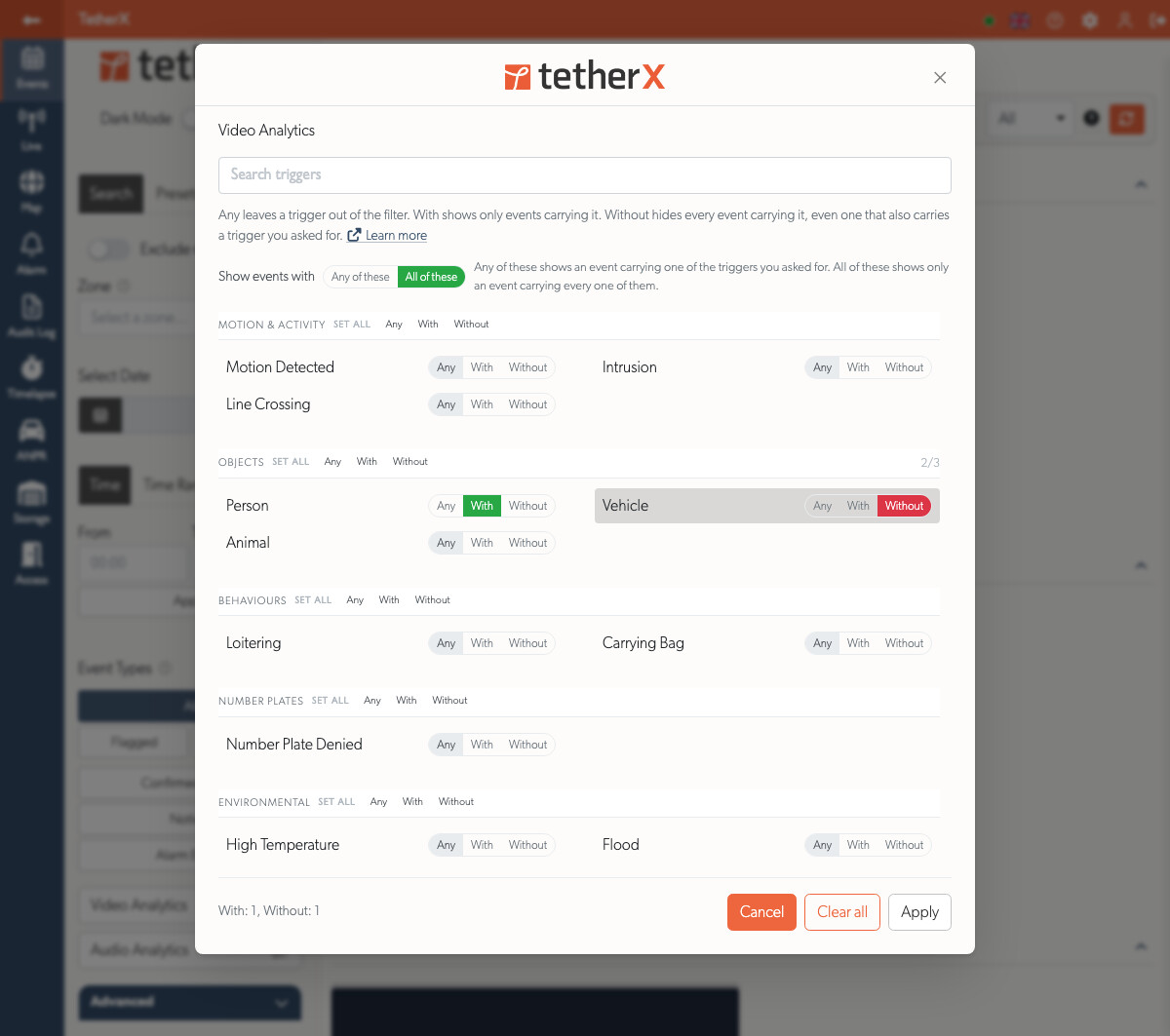
More precise event searches: Include or exclude video and audio analytics, and filter by duration or where the footage is stored. The new pickers group related analytics and let you select a whole category at once.
Event reports and related footage: Export a branded PDF report containing the event details, notes, number plates, audit trail and time-lapse images. From an event, open nearby events from the same, related or site-wide zones to investigate an incident in context.
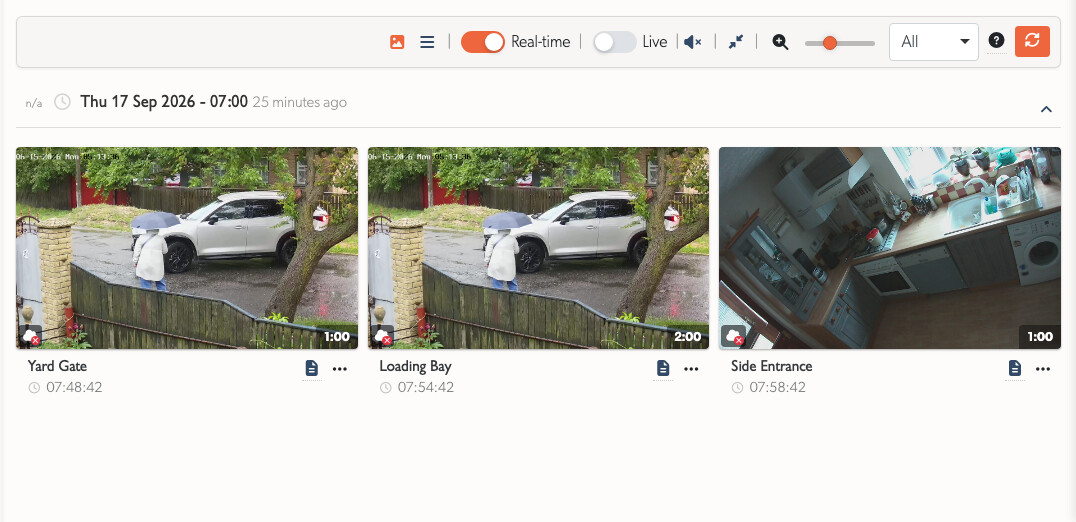
Clearer alarm events: Panel state changes, including arming, disarming and connectivity, now appear in Events. Map a panel zone to the camera that covers it, or leave it as a site event. See Alarm Signal Receiving.
Open event lists stay current: Returning from Live View no longer leaves Events updates on the wrong timeline, and an Open list no longer shows events that have been closed.
Clearer new-event playback: When footage is still arriving for a new event, the player explains that it will be available shortly and points to Timelapse in the meantime.
Quieter operator sign-in: Events notification sounds now start off for operator accounts and can be enabled from the Events toolbar when needed.
Cameras and Devices
Site devices in one place: Open a site's Devices tab to review its TetherBoxes, cameras and IP devices without loading those lists until they are needed.
IP Device diagnostics stay current: Ping results, open ports and the status badges update in loaded tabs while you work elsewhere on the device page.
A simpler camera scheduler: Replace the old scheduler with readable rules that can start at any minute, cross midnight and be layered for exceptions. Choose Record & Live, Record with no live view, Live only or Off; apply a schedule to several cameras; or, if your system has Professional Monitoring, give a high-risk camera its own monitored hours. Existing schedules are retained. See Camera Recording Schedule.
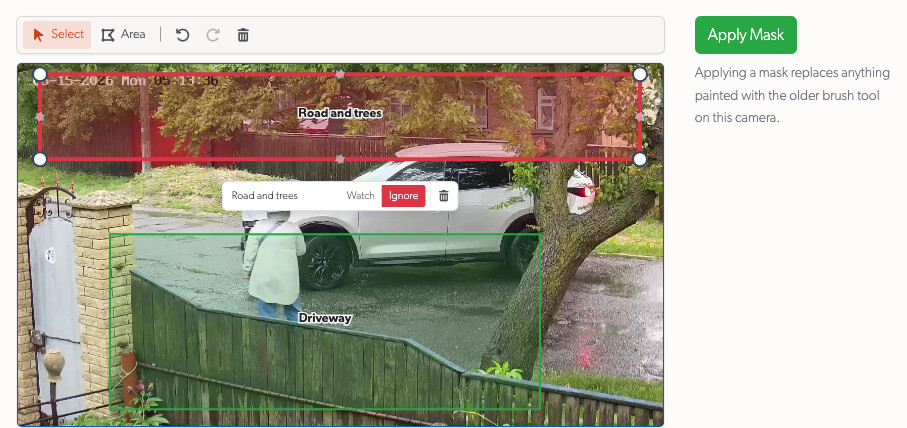
Camera Masking is now shape-based: Draw, name and move Ignore or Watch areas directly on a live still, then apply the mask without interrupting recording. The editor supports adding points and undo/redo, and explains how masks work with TetherX AI.
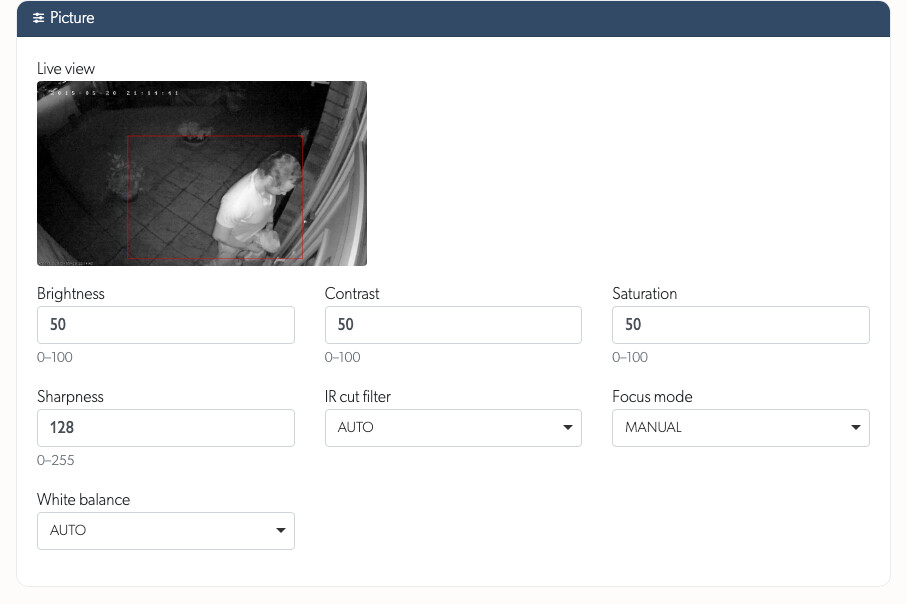
More control from the Camera API Tab: Configure supported deterrents and picture settings using the camera's own capabilities and limits. Camera and device pages now present clearer hardware, channel, storage and capability information, with matching CSV and Excel exports.
Storage and health are easier to spot: Cameras and devices now show recorder capacity, use, retention and disk warnings where reported. Disk health is read from supported native APIs and ONVIF devices, and failed recorder disks surface in device views, exports, the Health Dashboard and the Health Report.
Smarter camera context: Use Related Zones to open the cameras around an incident as one wall. Camera connection latency sits beside packet loss, with next steps in Footage Gaps. The lists also gain clearer audio, notification and model-image information.
Camera pages stay in place during updates: Stream health, notification preferences, schedules and masks refresh in loaded tabs without switching away from API or discarding an unsaved Related Zones selection.
TetherBox Management
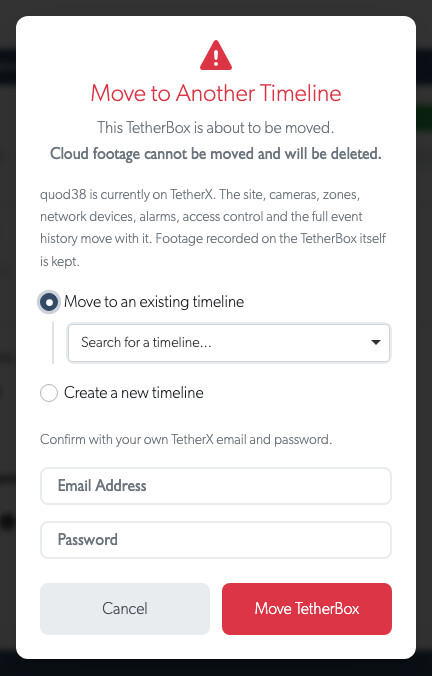
Move a TetherBox without starting again: Move a TetherBox and its site, devices, history and locally recorded footage to another timeline. Cloud footage that must be deleted is clearly shown before confirmation, and the Audit Log distinguishes a queued move from a completed one. See Timelines.
More maintenance options for administrators: Administrators can now reboot, shut down, reset or move their own TetherBoxes, manage storage and USB devices, and see update or reset progress without guessing whether a request went through.
A more useful TetherBox map: Live map pins update as units and faults change, distinguish recent and long-running outages, and work better across large fleets and touch screens. You can include long-silent units, return the whole fleet to view and open the relevant TetherBox, Live View or Events directly.
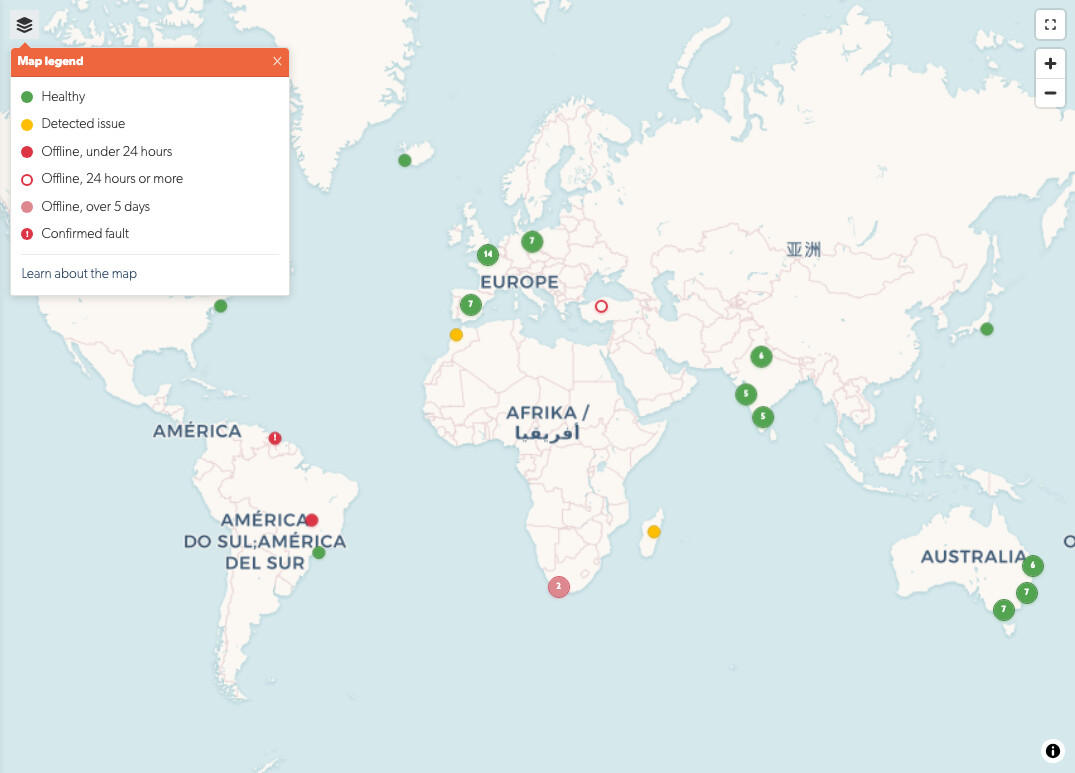
Better storage visibility: The TetherBox Cameras tab shows each camera's cloud protection, while device and camera pages show recorder capacity and retention. Historical drive data is clearly marked, so old readings are not mistaken for current ones. See Health Report and recording drive.
Status updates without losing your place: New TetherBox health readings update loaded Summary, Storage and Settings sections while you stay on the tab you are using. Refresh status asks the unit for a new reading immediately.
Update history alongside other history: Find TetherBox software updates beside Connections and Reboots under History, rather than under Settings.
Updates avoid unnecessary alerts: When another update is already running, TetherX waits and retries for up to an hour before reporting a problem.
New hardware and display options: Cameras, IP devices and USB devices now sit under one Devices section. TetherBox can run as a virtual machine, and supported C-Power LED signs can show ANPR plates. See Running TetherBox in VirtualBox.
Accounts, Sites and Professional Monitoring
Time-Limited User Access: Set Account Expiry and an event-footage period together under Time-Limited Access, for one account or a same-type selection of accounts. Footage access can cover selected zones at sites sharing one timezone, and the account, lists and footage views clearly show the limit and expiry.
Demo accounts keep their Timeline access: Staff can choose Timeline access while creating an account in a demo Timeline.
Safer, clearer access controls: Site-restricted administrators see only the accounts and resources they may manage. The account list explains site restrictions, Microsoft sign-in is available for matching work, school and personal accounts, and phone fields now validate and store international numbers consistently.
Monitored Hours for professionally monitored systems: If your system has Professional Monitoring, set the local schedule, covered cameras and date-based exceptions that decide when events reach an operator. Use temporary Monitor Now, Pause Monitoring or Engineer on Site windows without altering the underlying schedule; review detections that a rule held back; and apply changes across a group of sites. These rules now apply to sites monitored by TetherX as well as those forwarded to an external control room.
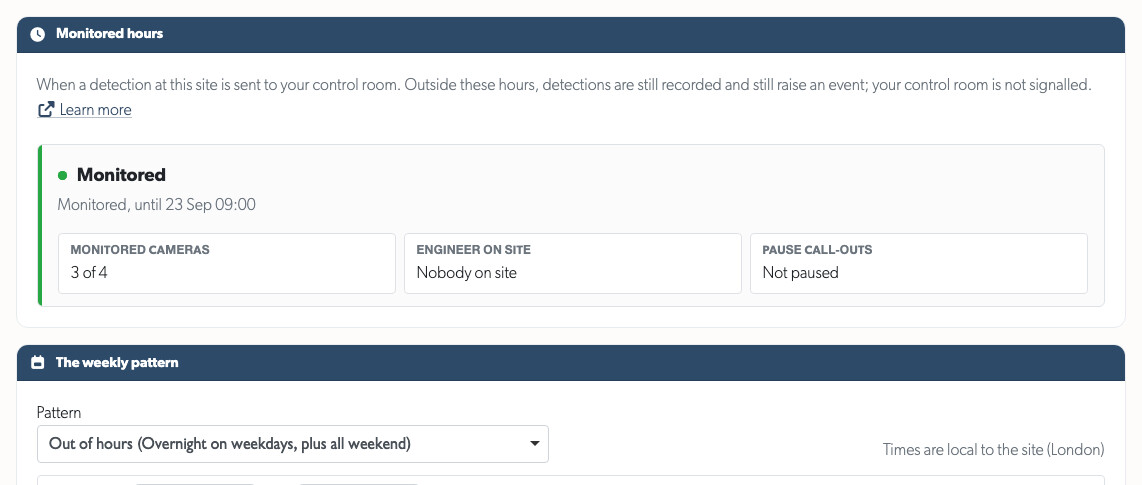
One clear monitoring status: If your system is professionally monitored, site, camera, alarm and event views explain whether it is currently monitored, outside hours, paused, under engineering work or disarmed. Events record the decision made at the time and show which control room received them.
Alarm keypad stays in place: New panel status, outputs, zones and log entries appear without resetting the keypad or interrupting a code being typed.
Expanded control-room integrations: Connect sites to Patriot Systems or HikCentral, alongside Immix. The unified Control Rooms area includes connection testing, camera-feed availability and clearer setup guidance. Patriot can receive operator notes; Contact ID reporting is now supported alongside SIA. See Control Room Software Integration.
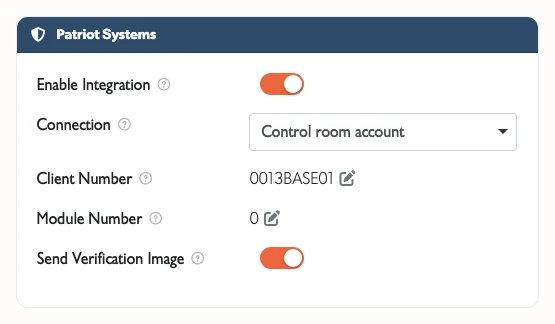
Patriot operators see what you did on the event: A comment added to an event arrives as an operator note on the matching Patriot activation, and so does a talkdown, white light, speaker or alarm relay a TetherX operator triggers, naming the camera and linking back to the event. Each type of deterrent is reported at most once every five minutes, so a run of them does not flood the activation.
Patriot maintenance windows from the site page: Put an account into Patriot's test mode, and take it out again, from the site's Patriot Systems tab, with the window Patriot currently holds shown beside the button. Signals still reach the control room during a window, and Patriot raises no activation for them.
Patriot activity on the event: An event sent to Patriot now shows what was sent and what came back: the alarm itself, the ticket number, the activation's current status and the notes on it, each with the time it happened.
Patriot connection tests are kept: The result of Test connection stays on the site and on the control room account, with how long ago it was taken, so the rights to ask your control room for are still there the next time you open the page. Test again whenever you want a fresh answer.
Patriot is told who closed the event: Closing an event completes the alarm at the control room and writes a note beside it naming who closed it and what they are: a site user, the site's own administrator, a monitoring operator, TetherX staff, the installer or the distributor. Patriot records the connection's own user against the completion, so without this an operator could not tell a customer handling their own alarm from a colleague already working it.
Test connection now says what TetherX can send, and what each missing permission costs: The Patriot connection test used to check only what TetherX could read, so a control room that had not granted permission to close alarms looked healthy until an operator closed an event and found out afterwards. It now checks every action TetherX sends back, closing an alarm included, without sending any of it. Each line that is not working carries a hint explaining what stops working, in plain terms rather than the control room's own wording, so the permissions to ask for and the reasons to ask for them are on the same screen.
Known refusals are no longer collected twice: Where the connection test has recently established that a control room refuses something, TetherX says so on the event straight away, naming the permission to ask for and when that was found, rather than sending the action and waiting to be refused again.
Snoozing an event now reaches Patriot: A soft close puts the alarm to sleep at the control room until the moment TetherX will close it by, carrying a note saying who snoozed it. If nothing further happens and the event closes itself, that close reaches the control room too, rather than leaving an alarm open that TetherX has already finished with.
Everyday Improvements
Modal windows are easier to close: Image previews, camera snapshot exports, device web interfaces and event-sharing windows keep their close button at the top right.
New user forms keep your choice in reach: Pressing Escape after editing a new user now leaves the unsaved-changes choice open, so you can decide whether to stay or leave.
Easier administration: Equipment and settings pages have clearer grouped tabs and resource headers. Bulk editing is more consistent, address search fills complete address fields, and date/time fields accept natural formats such as
9,930or09:30.Cleaner control-room settings: The site Integrations tabs for Immix, Patriot Systems, HikCentral and Manitou now use text labels without icons.
Clearer audit entries: Note changes show the edited text and time details cleanly.
Quieter account audit history: Refreshing an account row no longer appears as an action on that account.
Lists stay in place as equipment changes: Site, camera, device, TetherBox, user and export lists update without losing the current filter, sort order, page or selection. New and removed entries appear on the correct page, and open edits are not interrupted.
Cloud quotes and subscriptions: Quote cloud backup using activity, retention and quality, with clearer discounts, customer mark-up and SKU details. Prices use Canadian, Australian or Indian currency on the relevant domains; longer retention options and cancellation notices are handled consistently.
A site has one timezone: Set a site's timezone once, including across a selected group of sites, and use it for professional-monitoring schedules and exceptions. Every TetherBox at that site now runs on it rather than carrying its own, and the interface shows the current local time to make checking it straightforward. Its settings explain the site link and recording impact in a help popover. Changing the site's timezone moves the hours rather than converting them, and restarts recording on each TetherBox whose clock actually moves, which costs about 30 seconds of footage on that unit. See Timezones.
Documentation that asks for feedback: Knowledge-base articles now collect helpful/not-helpful feedback, while support-facing articles and the API reference have been expanded and clarified.
API and Reliability
The public API can now list and trigger supported camera deterrents, with useful errors when a command cannot run. Malformed requests return the correct 4xx response, and SIA errors identify the segment that needs fixing. See Alarm Signal Receiving.
Stability and usability fixes: This release includes a broad set of fixes across permissions, monitoring, alarms, storage, Live View, maps, event playback, tables and mobile layouts. Key improvements include reliable control-room settings, correct arming and health states, safer bulk updates, more accurate device and drive status, and smoother long-running Live View and Events sessions.
Under the hood: We also tightened the automated test suite, reduced unnecessary database work, improved audit-log accuracy and consolidated duplicated configuration. These changes make day-to-day actions more reliable without changing how you work.
Statistics
| Metric | Value |
|---|---|
| Commits | TBD |
| Lines added | TBD |
| Lines removed | TBD |
| Net change | TBD |