

Table of Contents
Time-Limited User Access
Use time-limited access when a contractor, investigator or temporary member of staff should only have access for an agreed period. You can set an account expiry, limit a standard user's event footage to selected zones during one fixed period, or use both together.
Expire an Account
An account expiry stops the user signing in after the date and time you set. It applies to the whole account, including live view, events and recordings.
- Go to Admin → Users and select the user.
- Open the Time-Limited Access tab.
- Set Account Expiry.
- Click Update User.
Leave Account Expiry blank when the account should continue to work. You can change or remove the expiry at any time before or after it passes.
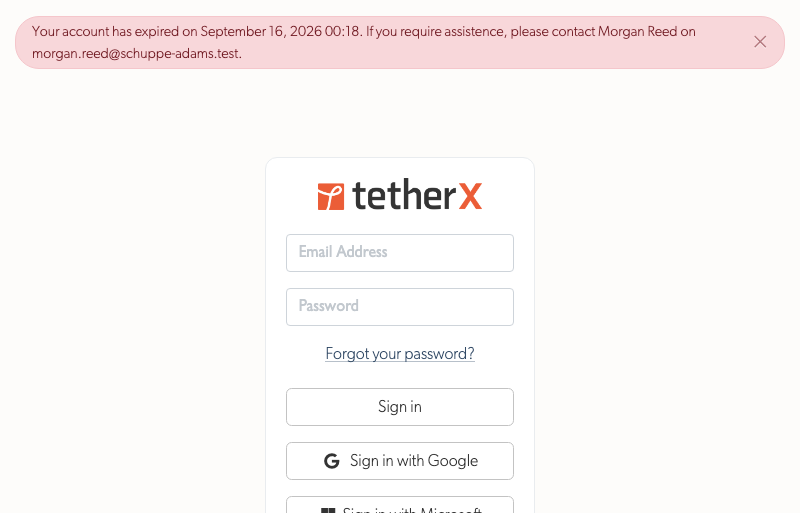
After the expiry, the person is returned to the sign-in page. The message states when the account expired and names the Admin or Integrator who set the expiry, with their contact details where available. Ask that person to extend the account if access is still needed.
Limit Footage to One Period
For a standard User or Operator, you can grant event access to selected zones and confine it to one exact period. This is useful when you need to provide footage from an incident without exposing footage from the rest of the day.
- Go to Admin → Users and select the user.
- Open the Time-Limited Access tab.
- In Zone & Camera Access Permissions, select Events only for zones at sites that share a timezone. An access period can cover more than one site when they use the same local clock.
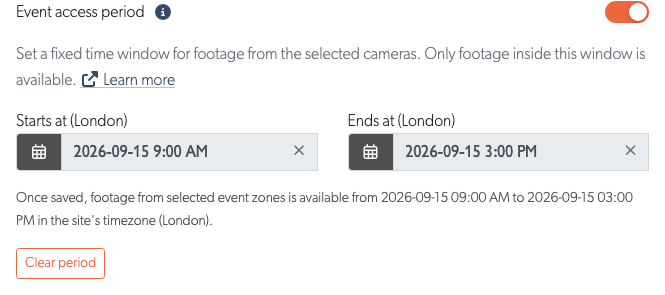
- In Event access period, enter the start and end in that shared site timezone. For example, enter
2026-09-15 08:00to2026-09-15 14:00for six hours of footage on 15 September. - Click Update User.
Both times are required to activate the restriction. Footage must fit completely inside the period: an event or recording that crosses either boundary is not shown. Leave both fields blank to give the user their normal zone-based event access.
Example: Police incident review
When police need footage from a specific incident, create a standard User account and grant Events access only to the relevant camera zones. Set an Event access period around the incident, for example 10:00 to 14:00 on the incident date, then set Account Expiry two days later. The account can review only that selected footage and stops working after the agreed evidence-review window.
Apply one limit to several accounts
In Users, select accounts of the same type and choose Edit. The Time-Limited Access tab applies one Account Expiry and one event period to every selected account. Use this for a group of investigators who should all receive the same incident window. The selection must be zone-restricted to set an event period. Use Clear event access period to remove both boundaries from every selected account.
After saving, the Permissions tab shows an Event access summary with the permitted-zone count, period and the site's timezone. Changing the user's timezone changes only how that user sees timestamps; it never changes the footage period. Use Clear period to remove both limits together. While entering or reviewing a period, the preview confirms the access that will apply after saving.
The Users index labels the account as Limited period in its permissions summary. Hover its information icon to see the configured period and site timezone without opening the account.

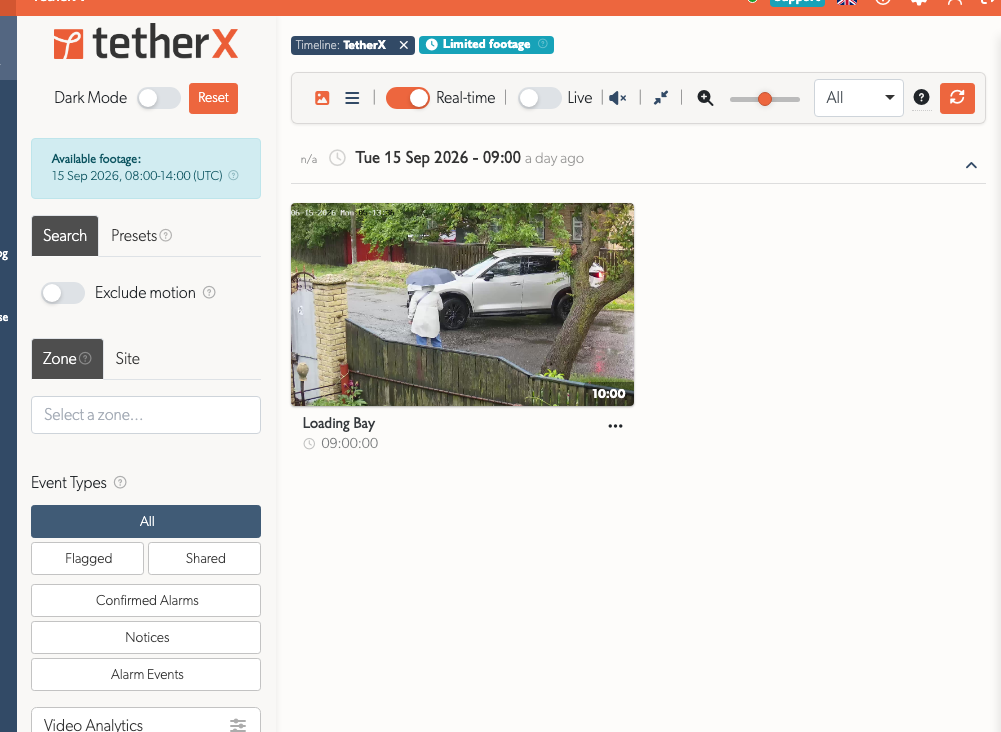
When a fixed period is active, the Events and Recordings pages show only the permitted footage. An Available footage notice states the active period in the site's timezone, with the full details in its information tooltip. A Limited footage badge remains beside the page filters on smaller screens. The date and time filters are removed because the available period is already fixed by the account.
Important: Set the user's event zones first in Zone & Camera Access Permissions, and keep them in one timezone. The event access period then limits that selected footage to the shared local dates and times; it does not add any zones by itself.
Zones selected for Events but not Live View are marked Event footage only in the permissions table. This makes it easy to check that someone can review the incident without opening a live camera feed.
If no footage matches, the page says No footage is available for your access period. Check the configured period and permitted zones, or ask an Admin or Integrator to change the account access.
Choosing the Right Limit
| Requirement | Use |
|---|---|
| Stop all access after a deadline | Account Expiry |
| Allow only selected camera zones | Zone & Camera Access Permissions |
| Allow selected-zone footage from one incident period | Event access period and zone permissions |
| Give a recipient one-off evidence without an account | Share an event |
Related Articles
- User Permissions - Create users and assign zone access
- Events - Find, review, share and download footage
- User Types - Choose the right account type