

Table of Contents
Q4 2026 Release Notes
Camera status reports and new recordings avoid unnecessary camera recounts, cache reloads and table refreshes, reducing processing delays during busy periods.
TetherBox update panels report failed command-line updates with the failure reason, clear output from the previous run and check for a result while an update is silent.
Camera scene descriptions deduplicate pending requests across servers. Routine status updates and skipped jobs no longer build duplicate sampling backlogs.
TetherBox IP conflict warnings exclude the shared default static address, 192.168.88.99, while continuing to flag conflicts on other addresses.
Dragging the recording seekbar updates the video while the mouse is held down. Seeking within buffered footage stays immediate after the recording finishes loading.
Recording playback releases failed streams before switching to native playback, rather than leaving failed downloads running in the background.
TetherBox storage rows and drive details flag SMR drives with a sustained-write performance warning, an explanation link and advice to replace the drive with a non-SMR model if performance issues occur.
The privacy notice displays clean text in every language, without a stray HTML paragraph tag.
New drives reporting zero power-on hours display zero age and wear instead of an enormous age derived from a vendor-specific raw SMART counter.
Camera and device network status shows the reporting TetherBox's latest heartbeat, rather than an old online-state timestamp.
Subscriptions lets staff browse every page of the company list without an error dialog. Company names remain readable in subscription headers, and account manager names display as links instead of HTML text.
The analytics API accepts live detector readings through an explicit read contract, fixing 502 responses when cameras returned valid analytics without an action acknowledgement. Commands and upstream refusals retain strict validation.
TetherBox pages keep updating reliably when the Devices tab contains many cameras and network devices, avoiding connection failures that could also interrupt the TetherBox list.
Event playback retains the preceding keyframe when starting or seeking inside an unbuffered recording, fixing clips that downloaded correctly but remained stuck loading in the player.
October - December 2026 · Work in progress
The filter sidebar's Reset button keeps its neutral outline with custom branding in light and dark mode.
Drives formatted automatically by the TetherBox show their normal health status without a formatting warning. Failed formatting attempts still show a warning.
The TetherBox Show page warns when another device answers for the box's own IP address. The Network tab shows the responding MAC addresses and check age, and marks stale or failed checks as unknown.
Live View connects directly to compatible local TetherBoxes even when Safari blocks local connection checks, and falls back to internet streaming when needed. Cameras start immediately, with background checks after network changes or returning to the tab. Switching preserves the picture, zoom, audio settings and pause state; the blue icon also recognises a confirmed local video connection across the TetherBox's available network interfaces.
Live View makes local blue and cloud green easier to distinguish with a larger connection indicator and matching pale borders. Empty tiles no longer inherit the last camera's name, and camera selections stay aligned with the picture. Camera startup failures appear in the affected tile instead of leaving an empty picture.
Background preset loading failures leave the current Live View playing without opening an error dialog. Opening a preset still reports failures normally.
Live View starts new camera tiles and fullscreen muted, while preserving audio settings during stream changes. When Safari requires a tap to play, the action stays visible until playback resumes instead of cycling through connection retries.
Live View keeps the blue local-streaming indicator steady when a browser briefly cannot report connection statistics. Confirmed changes to internet streaming still update the indicator immediately.
Paxton Net2 setup: New and edit forms group connection settings, mask the password and keep actions in the modal footer. Status actions and door reader switches have consistent spacing. The unused Auto Unbypass Delay option is removed. The setup guide includes current TetherX screenshots and illustrated Net2 API setup steps.
Paxton health reports and status details distinguish a refused API port, an unreachable network, a timeout and a TLS failure. They retain separate listener faults and link to the Net2 setup guide.
Operators fetching Paxton doors, users or access levels see Net2 API failures as service errors, with a concise explanation instead of an HTML page in a validation dialog.
Operators can refresh Paxton API and live-event listener health, see an orange status with next steps when the PC responds but the integration has a fault, and open the setup guide from the integration page. Active uses the TetherX switch and passwords stay masked during inline editing.
Health Reports include a separate Access Control Issues category when an active integration has a reported fault, with the affected system, site, TetherBox and troubleshooting guide. Unverified status stays separate from faults, and an offline TetherBox is counted once even when access systems depend on it. See Health Report.
Revenue chart labels: Revenue change by partner shows each partner's name beside its monthly boxes. Revenue retention by cohort labels each row with its starting month as YYYY-MM.
This quarter adds natural-language footage search, more detailed AI detections and counting, camera automations, and clearer storage health. Follow the linked guides for setup and full instructions.
Camera stream quality at a glance: The existing camera status details highlight stream quality problems with available packet loss and jitter readings. Routine and unavailable readings stay hidden.
Device status updates sent as JSON batches are accepted without Rails adding a conflicting empty device wrapper. Recovered camera authentication can replace an earlier rejected-credentials status.
Find Footage in Your Own Words
Describe the incident: Open Find footage on Events and search for something such as “a person wearing a red hat around noon”. Review the suggested locations, dates and detections before searching. Combine dates with daily hours, or dictate in supported browsers. See Natural Language Search.
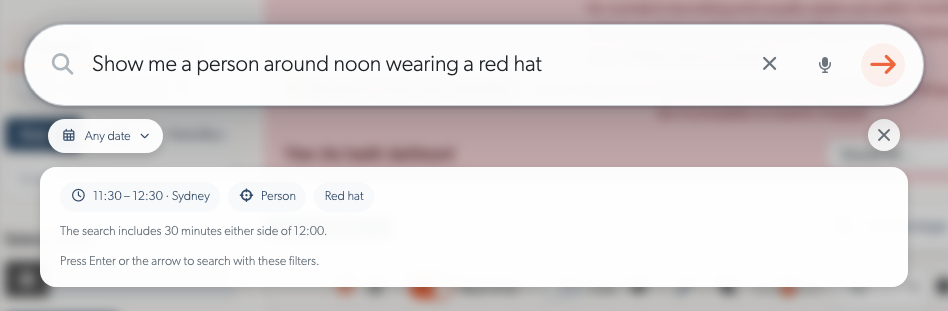
Search by place: Online recording cameras generate descriptions from a live image. Edit the description and keywords, or request an AI refresh, to help searches match places such as loading docks and service yards.
Clearer search progress: Events distinguishes a pending search from an empty result, explains timeouts, and adds newly matching events as they arrive. Appearance searches require the corresponding detections to have been recorded; they cannot add detail to older footage.
AI Detections and Counting
More precise appearance searches: TetherX AI distinguishes dogs, cats and birds, and cars, motorcycles, buses and trucks. Combine supported types with colours. Bicycles have their own search and counting class; a cyclist counts as a person and a bicycle, with no bicycle colour.
PPE and covered faces: Find people missing hi-vis or a hard hat, or with a covered face. People the AI cannot assess remain unassessed. These detections are off by default; contact TetherX support to enable them.
Vehicle trigger names: Car, Truck, Bus and Motorcycle each offer moving and stationary triggers. Vehicle selects all four types. The previous Vehicle trigger is renamed Car to reflect what it matched; check existing rule choices.
Counting charts: Compare entries and exits by class, drill from daily totals into shorter intervals, and filter by time, site, camera or line. Drag across the chart to focus on a period, with matching totals and CSV/Excel exports. Today's incomplete figures stay separate from completed daily totals. See People Counting.
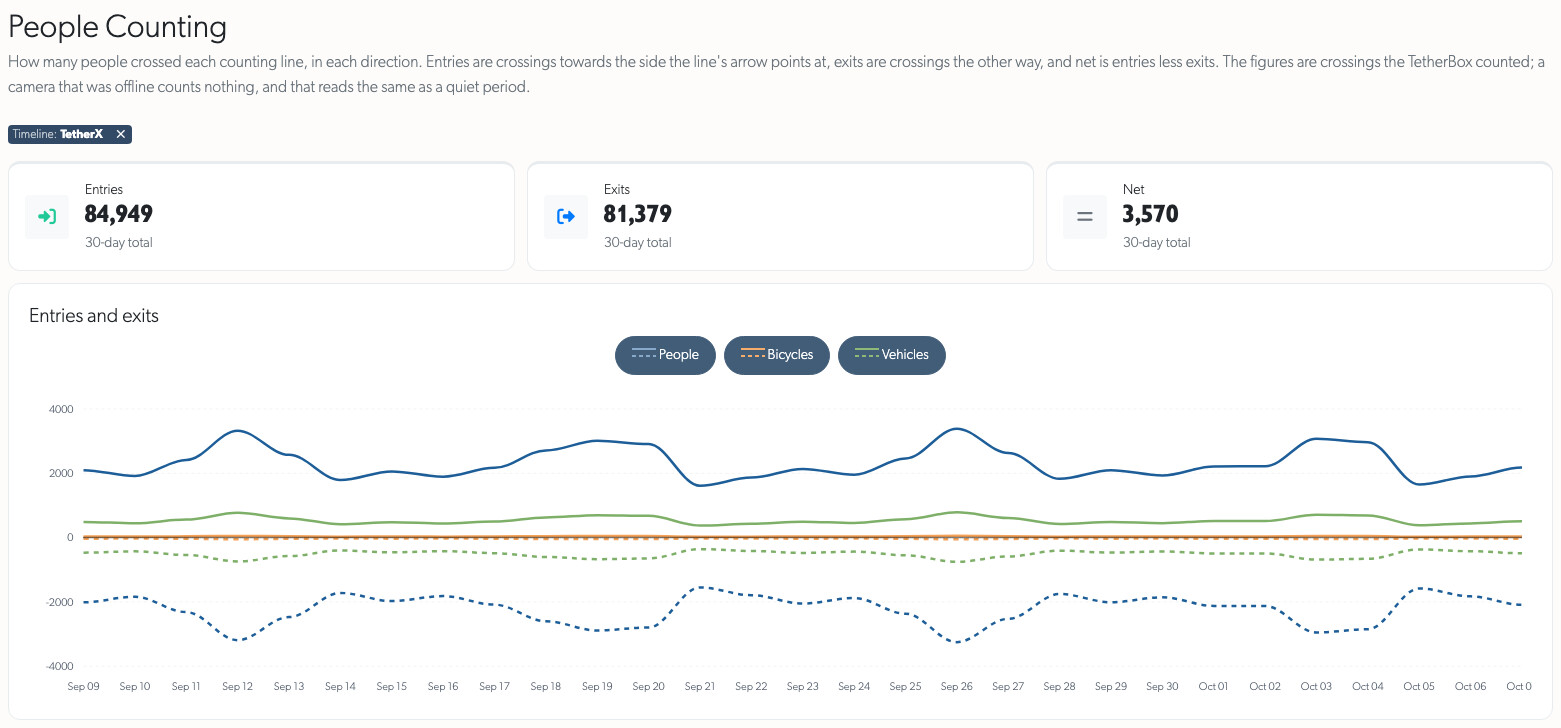
These detections require compatible TetherBox AI software. Camera status explains when an optional analytic is unavailable on the installed hardware and links to the relevant guide.
Camera Automations
Respond to activity in named areas: Automations and Rules can alert when a counter is unattended or a crowd forms. Draw regions, set thresholds and durations, choose active hours, then review notifications and equipment actions before saving.
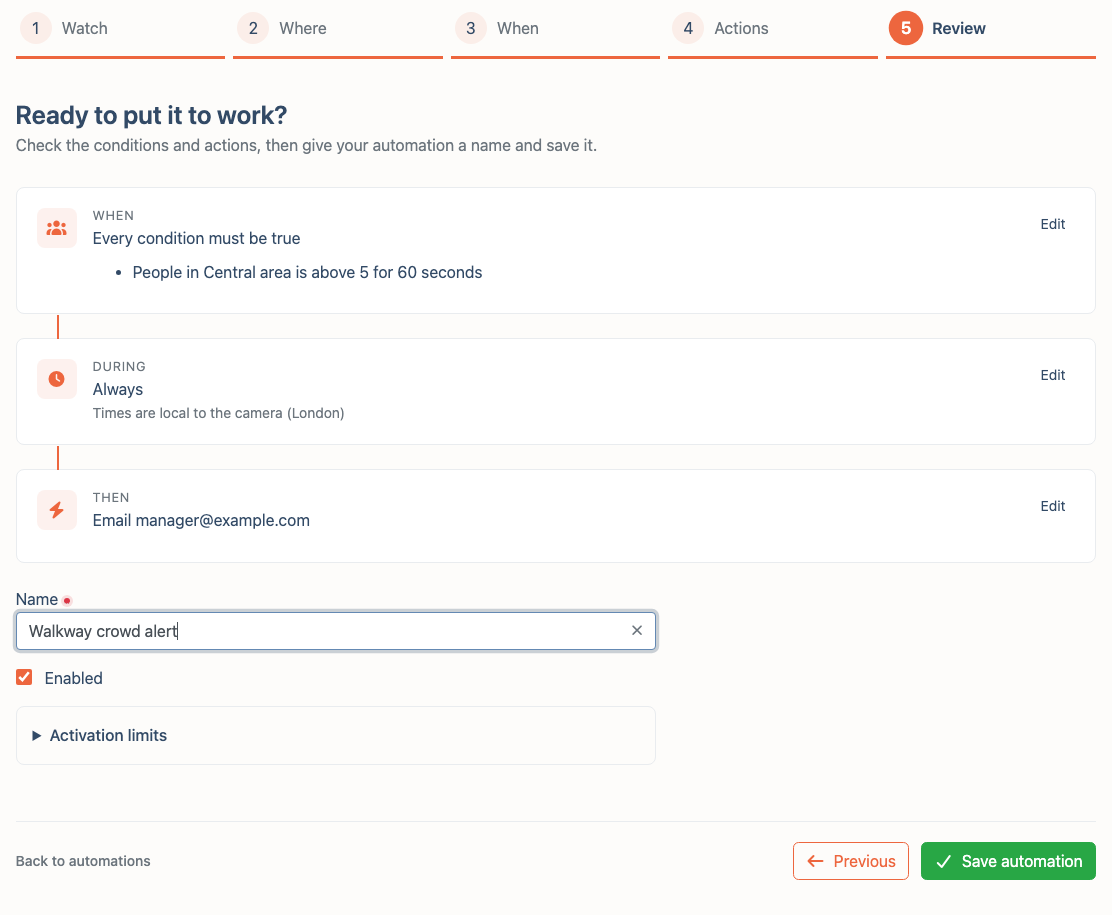
Choose the response: Send notifications or email, play recorded audio, activate PicoFlex outputs, or control supported camera sirens, strobes and lights. Garrison actions operate selected cameras at the same site. Explicit Off actions need no duration or recording and do not restore outputs when the rule clears.
Filter by enabled detections: Rules can count assessed PPE or covered faces and include both the matching count and total occupancy in alerts. Experimental weapon filters require matching version 4 automation support on the TetherBox and detector.
Experimental cleanliness checks: Staff can enable periodic checks for persistent litter, spills, overflowing bins or debris where the installed model supports them. Findings must persist for three checks before alerting; the rule's recipients, hours and activation limits still apply.
Automation setup is currently staff-only; contact TetherX support. Automations require TetherX AI, Only Monitor turned off, compatible TetherBox software and suitable equipment for output actions. Experimental weapon and cleanliness detection are opt-in; cleanliness checks run once a minute or less often.
Live View and Camera Controls
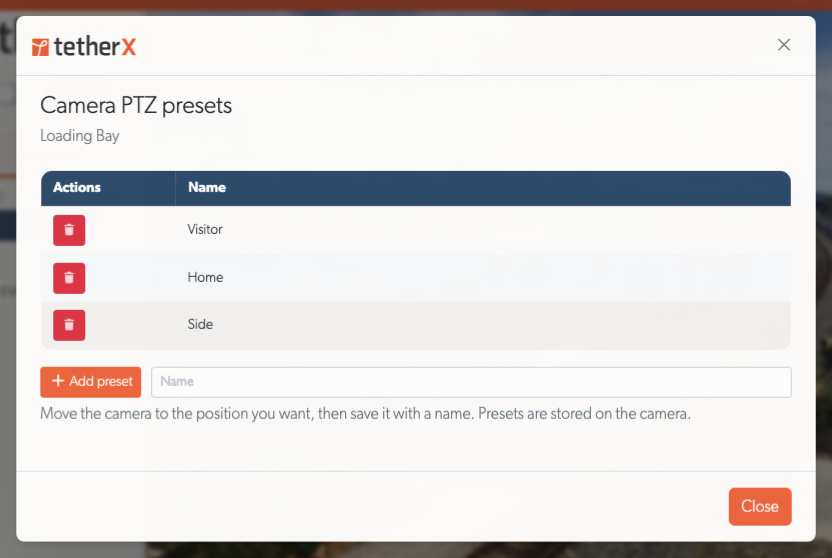
Manage camera PTZ presets: Save named camera positions and delete presets directly from the Live View preset menu. These positions are stored on the camera. See Live View.
Operate deterrents in context: Live View, fullscreen and the event operator console share Strobe, Siren and Relay controls. Manual Garrison activates supported sirens and strobes on permitted cameras at the event's site, with mixed states and individual failures reported. Talkdown remains separate. See Talkdown and the Monitoring Station Operator Guide.
Clearer control status: Compact panels show supported controls, explain unavailable features and command failures beside the affected control, and keep their layout stable while loading. Infrared lamps are labelled IR Light. Stop remains available for unknown or mixed output states.
Faster, steadier streaming: Supported remote cameras use low-latency streaming with automatic fallback; compatible local TetherBoxes can connect directly. Recovery retains the last picture, and fullscreen or quality changes preserve zoom and audio choices. Stream details identify the active transport and quality.
Walls and saved views: Fullscreen layout fills the display with the camera grid while retaining controls and an exit button. Preset groups can be renamed and deleted across All timelines and retain their grouping after refresh. Deleted cameras have a clear removal action.
Notes for operators: Accounts with notes-viewing permission can read notes in Live View, event details and record pages. Granting reading access does not grant editing; staff-only notes remain restricted.
Direct local streaming requires compatible TetherBox software. Camera walls apply access changes, schedules and browser sign-outs within one minute.
TetherBox Storage and Health
A consistent health picture: TetherBox lists, Storage, Drives, the Health Dashboard and Health Report show matching findings. Fleet issue totals include the full filtered list, and badges explain recording problems and where to investigate them.
Understand drive warnings: Storage brings drive health, USB details, partitions and RAID recovery together. It distinguishes ejected, unplugged, missing and unreadable drives, including unreadable disk sectors. Hard disk age and rejected NVMe diagnostic commands alone do not raise hardware-fault warnings; genuine faults and SSD wear remain visible.
Review AI health insights: Drive assessments use the same findings as the health badge and distinguish usage counters from faults. Failed or empty analyses preserve the previous result and explain the error. See Recording Storage.

Act on unused drives: Review why a drive is unused and format eligible drives from Health. Format explains blockers such as read errors, checks in progress or a suspected fault. RAID members and drives that may contain ext4 or btrfs footage are protected from reformatting.
Recover unresponsive USB drives: Compatible TetherBoxes restart a stalled drive's USB connection and remount it when it returns with the same filesystem. Storage, Health and report emails show whether recovery succeeded or an on-site reconnection is needed. USB commands complete or report a timeout within 45 seconds.
Set up blank storage automatically: Compatible TetherBoxes format drives confirmed completely blank. Existing data, previous filesystems, health warnings and the system disk prevent automatic formatting; the outcome appears in Storage and health reports.
Clearer unit management: Network details use consistent LAN numbering and Mbps rates. New units and sites start with regional timezones on the Australia, North America and India clouds; existing choices remain unchanged. Disabling a compatible TetherBox stops camera streaming and device monitoring as well as platform playback.
RAID reporting, USB recovery, automatic blank-drive setup and stopping monitoring on disabled units require compatible TetherBox software. See Storage Hardware Recommendations for drive selection and Replacing a TetherBox Drive for replacement steps.
Camera Settings, Accounts and Help
Camera settings for administrators and integrators: Accounts that can manage a camera can edit supported video, audio and picture controls under API → Settings. Shared audio encoders have one editor, preventing another stream's unchanged values from overwriting an edit. See Camera API Tab and Manual Camera Configuration.
Devices list: Devices show FTP and SMB pills beside Web, Video, SSH and VNC, and the Detected Services filter selects either. A device whose network card belongs to a virtual machine shows a VM pill. FTP and SMB detection requires compatible TetherBox software. See How TetherBox Detects Devices.
Camera models and vendors: A camera that rejects its stored password still shows its product photo when it announces its model on the network. Product photos cover more TVT, Dahua and Akuvox models, including the Viper 16-channel NVR, Honeywell devices show the Honeywell logo, and new Akuvox cameras receive Akuvox stream paths instead of a blank default. A camera built for another brand shows every maker it names, each with its logo where one is available, rather than only the first. A camera's model, firmware and serial number are read from its own interface first and ONVIF second, so the cloud and the TetherBox describe it the same way.
Camera configuration: Secondary streams prefer H.264 Main when available for smoother playback. Camera lists can filter by TetherX AI enabled or disabled, and credential failures show relevant guidance. See Automatic Configuration.
Faster account changes: Local account access updates reach compatible TetherBoxes within seconds. Account and device changes are confirmed by the TetherBox, with refused or unanswered changes retried. Removed or deactivated accounts lose local sign-in access.
Help by task: The Frequently Asked Questions groups related answers and adds a page filter, with guidance on bulk downloads, retention, drive faults, TetherBox AI and SSO services. Local Streaming provides a shorter connection checklist and links to the offline-interface instructions. User Guide, Integrator Guide and Operator Guide collect relevant instructions, with partner tools grouped separately in the help menu.
Languages and smaller screens: Italian joins the language menu for screens, emails and messages; help articles remain in English. More navigation exposes additional permitted pages on small screens, and long dialogs keep Save and Apply accessible. Alert and account emails have clearer primary actions. Help icons stay beside their labels across settings, accounts and activation forms.
Integrations and API Changes
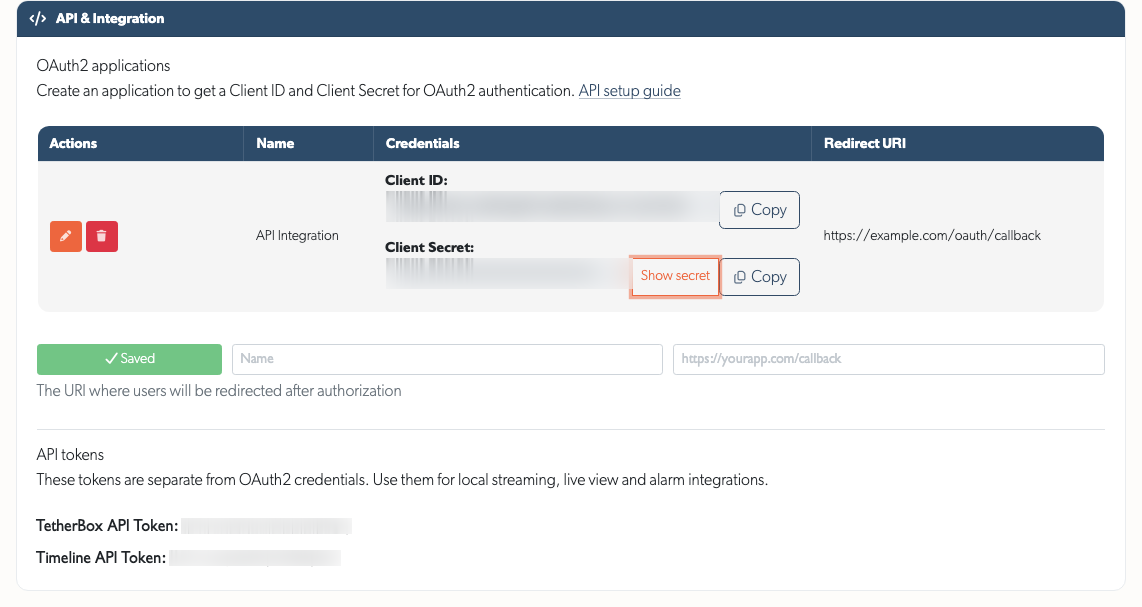
OAuth2 credentials: API Details separates applications from API tokens, with Client ID, a hidden Client Secret and Copy buttons. Authorised accounts can create applications without an assigned company. See API Getting Started.
AI results: Event responses include recorded hi-vis, hard-hat and face-covering assessments. Zone analytics adds
hard_hatalongsidehelmet, distinguishing construction hard hats from cycle and motorcycle helmets; unassessed people remain unassessed.PicoFlex inputs: Each input has an alert cooldown. Digital inputs default to every activation; analogue inputs default to four hours. Panic, duress, medical, flood, fire and gas alerts bypass camera arming and recording schedules. Requires compatible TetherBox software. See MicroChip.
Patriot Systems: Alarms link to the full TetherX event. Observed, No Action Taken and Report Sent, including cleared selections, reach Patriot as operator notes.
Retired integrations: The AJAX alarm and Hikvision AX PRO (Hik Pro Connect) integrations are removed, as no account had either connected. An account's Integrations tab now holds only the Patriot control room login, and appears on operator accounts.
Reliability Improvements
- Smaller downloads after updates: Browsers reuse unchanged map, chart, video playback, table, phone input, rich text editor and event interface libraries instead of downloading them again after routine platform updates. Chart and table libraries download only when a page needs them; tables in unopened tabs wait until the tab opens.
- Playback: iPhone Safari's Tap to play recovers blocked autoplay, bursty camera audio plays reliably, and live streams reconnect without overlapping error messages. Scrubbing preserves audio, while missing or temporarily unavailable event footage shows the appropriate empty state.
- Schedules and drawings: Full-day and overnight rules retain their meaning when reopened, typed times keep their values, and invalid schedules, automation regions, masks and counting lines explain corrections while preserving saved settings. See Camera Recording Schedule and Camera Masking.
- Forms and live updates: Open popovers, unsaved edits and entered names survive background updates or failed saves. Actions show progress and completion, explain errors beside the control or field, and remain available for retry without repeated dialogs.
- Access and sign-in: Site restrictions apply consistently to footage, real-time updates, exports and attachments. Queued moves and deletions recheck permissions. Google sign-in offers account selection; activation emails include a copyable link.
- Record pages and reports: Missing timelines, sites or comment authors no longer break details or create misleading links. Footage-gap cameras appear once in health reports, and Storage retains its scroll position during reconnection. Sorting a table marks the chosen column straight away and keeps the table scrolled to the same columns, however long the results take.
- Large lists: TetherBox, camera, device, site, wireless, export and account lists load faster at 100 rows per page, and changes from other users arrive in fewer, smaller updates. Real-time updates pause while more than 50 rows are shown on one page, with a notice explaining how to turn them back on. List overview totals use thousands separators to make large counts easier to read.
- Reseller branding: Resellers whose logo ships with the platform see their own logo in the sidebar and terms dialog instead of the TetherX logo, and placeholder tiles for events without footage carry the reseller's logo. ARC daily report progress bars fill to their value, and audit log entries for camera exports open without an error.
- Bulk flagging: Events flagged together from the events list are kept for one year, after which the flag clears automatically, just as a single flag clears after its chosen period. Events flagged in bulk before this change stay flagged until someone removes the flag.
- Factory resets: A factory reset no longer stops at a network device with incomplete details, so the unit is left with none of its devices.
- Platform availability: Routine updates keep pages responding and device messages arriving. TetherBoxes can receive browser certificates after moves between regional clouds. Failed requests include useful support references.