

Table of Contents
Two-Factor Authentication
Sign-in verification asks for a code after your password. An authenticator app is the recommended choice. An email code is available if you cannot use an app, but it offers less protection because access to your mailbox may be enough to receive it. Start by making sure your password is strong.
Password Requirements
TetherX checks the strength of every new password before accepting it. A password that is too easy to guess is rejected, and you will be asked to choose a stronger one.
What makes a valid password
- At least 12 characters. A password below 12 characters is rejected before anything else is considered. Length counts for more than any other single characteristic, so a longer password scores higher than a short one with punctuation in it.
- Mix character types. Combining lower case, upper case, numbers and symbols (for example
!@#$%^&*?_~-) raises the score quickly. A password that mixes letters with numbers, or letters with symbols, clears the bar comfortably.
A password made only of letters, or only of numbers, loses points and is often rejected as too weak even at 12 characters.
What gets rejected
- Common passwords. Well known choices such as
password,letmein,qwertyor123456are on a blocklist. Substituting characters or adding digits does not get a blocklisted word past the check, soP@ssw0rd,Passwordandpassword2026are all rejected as well. - A single repeated character, such as
aaaaaaaaaaaaor111111111111. - Your email address, or a recognisable part of it, weakens the password sharply. A password that is your email address is rejected.
- Sequences like
abcor123, and repeated runs likeabcabc, both count against the score.
Examples
| Password | Result | Why |
|---|---|---|
sunny |
Rejected | Under 12 characters |
Sh0rt!Pass |
Rejected | Under 12 characters, whatever it mixes |
P@ssw0rd2026 |
Rejected | A blocklisted password with characters substituted |
abcdefghijkl |
Rejected | Letters only, in alphabetical order |
Coffee7Rain! |
Accepted | 12 characters, mixes upper case, lower case, a number and a symbol |
blue-River-42-lamp |
Accepted | Longer passphrase with mixed characters |
A good habit is to string together a few unrelated words with numbers or symbols between them: easy for you to remember, hard for anyone else to guess.
How It Works
When sign-in verification is enabled, you'll need:
- Your email and password (something you know)
- A code from your authenticator app or email
With an authenticator app, someone who obtains your password must also reach the code on your device. An email code is easier to access if the mailbox uses the same password or is already open on another device.
Setting Up an Authenticator App
Requirements
- A smartphone with an authenticator app (Google Authenticator, Microsoft Authenticator, Authy, 1Password, or any TOTP-compatible app)
- Your current TetherX password
Steps
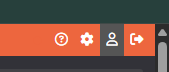
- Click your profile icon in the top right corner → Security tab
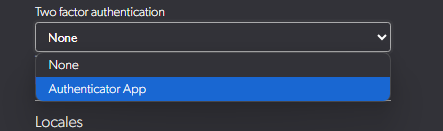
- Select Authenticator App from the Two-Factor Authentication dropdown
- Enter your current password and click Update User
- Scan the QR code with your authenticator app (or manually enter the setup key)
- Enter the 6-digit code shown in your app to verify setup
Email codes instead
- Open your profile and choose Email code (less secure) from the Two-Factor Authentication menu.
- Enter your current password and select Update User.
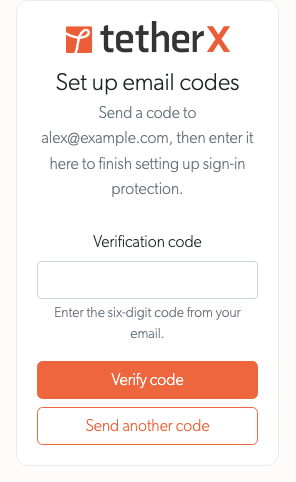
- On the setup page, select Send code. Open the email sent to your account address.
- Enter the six-digit code and select Verify code. Setup is complete when the profile confirms it.

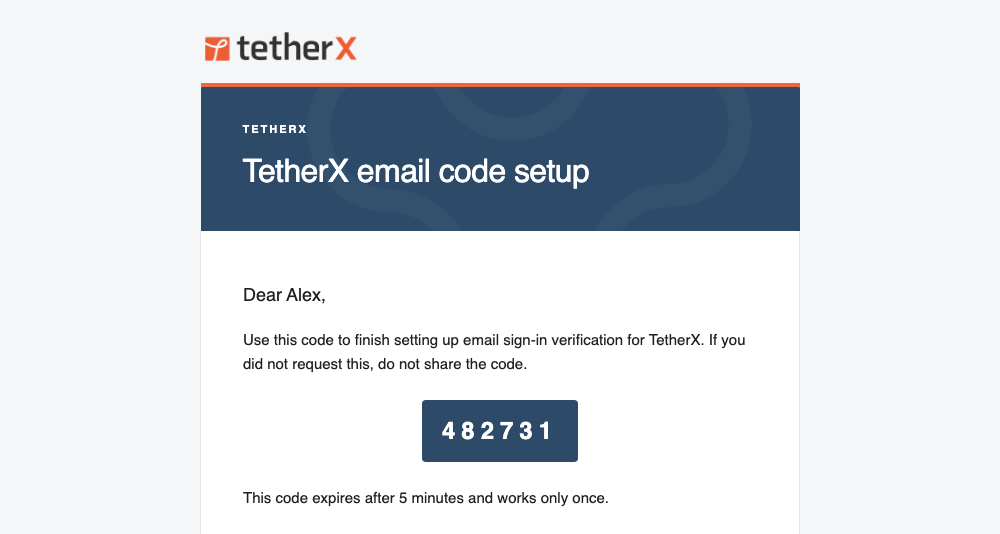
Warning: Email codes are a lower-security fallback. Use an authenticator app when possible. A sign-in email code works once and expires after five minutes. The code is sent even if your configurable notification emails are paused; if your mailbox cannot receive it, see Rejected Emails or ask your administrator or integrator for help.
Warning: Regular users cannot disable 2FA once enabled - this prevents attackers from turning it off. Administrators, integrators, and staff can disable their own 2FA (requires password) or reset it for other users.
Signing In with 2FA
After entering your email and password, you'll be prompted for a verification code. With an authenticator app:
- Open your authenticator app
- Find the entry for TetherX
- Enter the 6-digit code (codes refresh every 30 seconds)
- Click Verify
With email codes, open the new message sent to your account address, enter its six-digit code and select Verify. Select Send another code if it does not arrive; you may need to wait one minute before another can be requested.
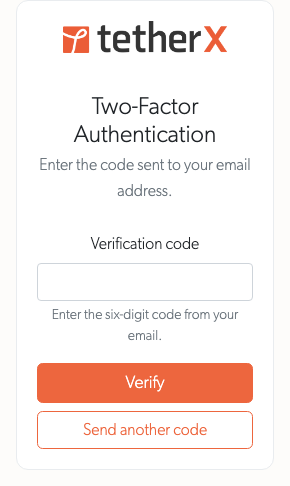
Tip: Codes are time-sensitive. If codes aren't working, ensure your phone's clock is set to automatic. TetherX accepts a code from one 30 second step either side of the current one, so a phone that is slightly out still works.
Each code can only be used once. Authenticator app codes refresh every 30 seconds. Email codes expire after five minutes, matching the time allowed to finish a pending sign-in.
You have five attempts at the code in any fifteen minutes. After that the account is locked, and starting again from the sign-in page does not give you a fresh five. A sign-in you leave part-finished expires after five minutes. See Account Lockout.
If you sign in with a passkey instead of a password, you are still asked for your verification code. A passkey replaces the password only. See Passkeys.
Lost Access to your Authenticator
If you lose access to your authenticator app (lost phone, app deleted, or device reset), contact your administrator to reset your 2FA settings. If you are the administrator, contact your integrator or Support.
Managing 2FA for Other Users
Administrators and integrators can enable or disable 2FA for other users.
Enabling 2FA
- Go to Users → select the user → Security tab
- Select Authenticator App or Email code (less secure) from the dropdown
- Click Update User
The user will be signed out of all active sessions and required to complete 2FA setup on their next login.
Disabling 2FA
- Go to Users → select the user → Security tab
- Select None from the Two-Factor Authentication dropdown
- Click Update User
2FA is disabled immediately. Use this to help users who have lost access to their authenticator app.
Related
- Signing In - Every way into TetherX: password, passkey, Google and Microsoft.
- Account Lockout - What happens after repeated wrong passwords or verification codes.
- Passkeys - Sign in with your device's fingerprint reader, face recognition or screen lock instead of your password.
- User Permissions - Configure what each user can access and do in the system.
- Reset Your Password - Change your password or recover a forgotten one.
Referenced in: