

Table of Contents
Audio Challenge (Push to Talk)
Speak to people on-site straight from a camera's live view or the operator console. Hold a button to talk, play a pre-recorded warning, or hold a full two-way conversation on cameras with built-in echo cancellation, and it comes out of a speaker at the site.
Tip: This feature is also known as talk down, two-way audio, push to talk (PTT) or live audio in the security industry.
Where the audio comes out
Each camera plays its talkdown audio out of one of these, chosen per camera:
- TetherBox speaker (3.5mm jack) - a speaker or PA system plugged into the TetherBox
- An IP speaker on the same site, for example an Axis network speaker, registered from Devices
- The camera's own speaker, on cameras that have one built in
- None, to leave a camera silent
See Camera and speaker compatibility at the bottom for supported brands.
Hardware Setup
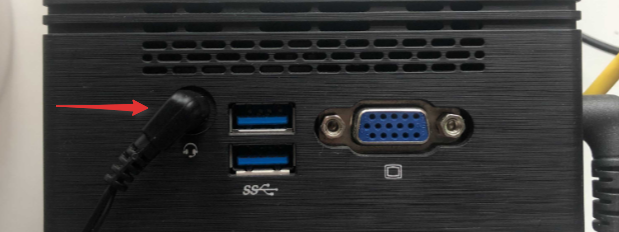
A TetherBox has a 3.5mm audio jack on the back for a speaker or PA system.
Audio jack location on rear of TetherBox
Supported devices: speakers, PA systems and tannoys with a 3.5mm input
Connection: run a 3.5mm cable from the TetherBox to the speaker or PA system
Power: the speaker or PA system needs its own power source
If you are using an IP speaker or the camera's own speaker instead, you do not need the 3.5mm jack.
Configuration
1. Enable Audio Challenge on the TetherBox
- Go to Admin and open TetherBoxes, then select your TetherBox
- Open the Settings tab
- Scroll to the Audio Challenge section and toggle it on
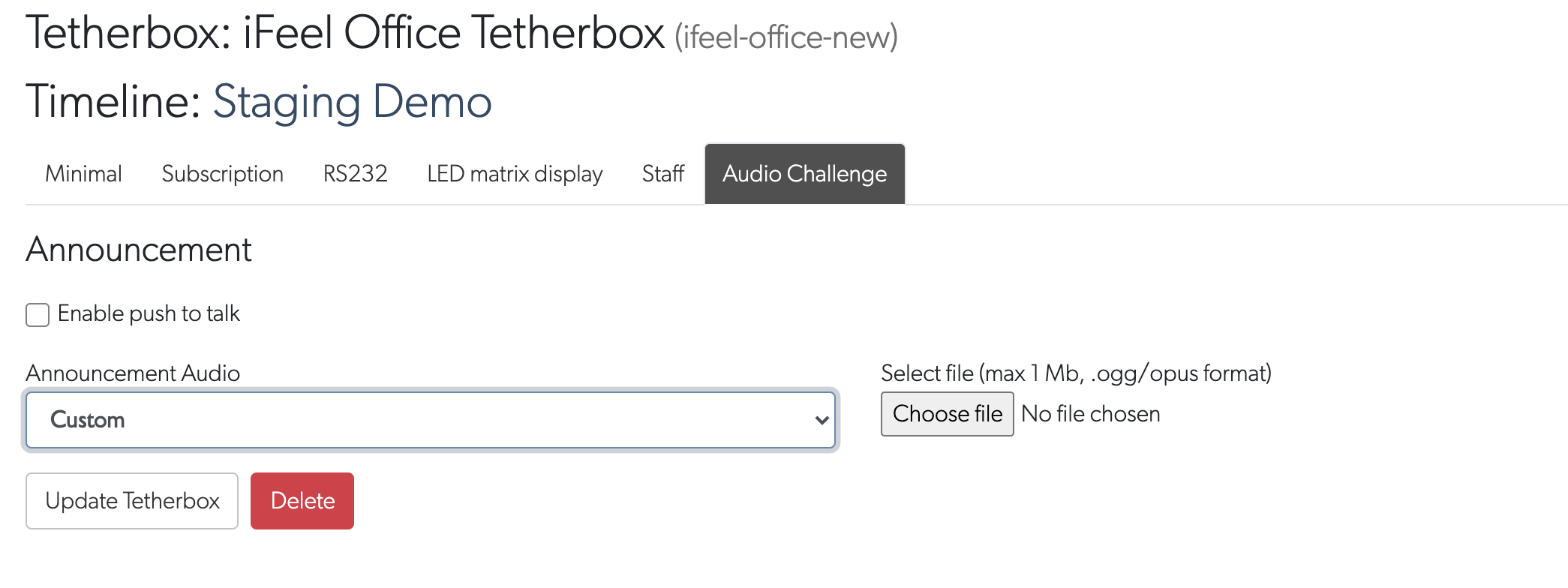
- Optionally add the pre-recorded messages operators can play. Use Upload File for a clip (up to 5MB: .mp3, .wav, .m4a and similar) or Record Audio to record one in your browser (hold the mic button, up to 30 seconds). Messages are shared across every camera on the site, so you set them up once here.
2. Give the user permission
Talkdown only appears for users who are allowed to use it.
- Go to Admin and open Users, then select a user
- Open the Permissions & Notifications tab
- Enable Allow Audio Challenge and click Update User

3. Choose the speaker output per camera
This is where you tell each camera which speaker to use.
- Go to Cameras and open a camera. On the Details tab, find the Audio Challenge card.
- Set Speaker Output to the option you want: None, the TetherBox speaker, an IP speaker, or the camera's own speaker.
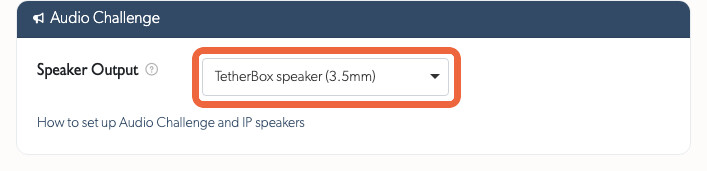
The talk controls then show which speaker they will use, so an operator always knows where their voice will be heard.
Using an IP speaker? Register it first so it appears in the list. See Registering an IP speaker at the bottom of this page. You do not need this for the TetherBox 3.5mm jack or the camera's own speaker.
Talking to site
Push to talk
Push to talk works on any camera, whichever speaker output you picked. The control is in two places: the Hold to talk button in Live View (hover a camera tile to reveal it) and the Two Way Talk tile in the operator console toolbar.
- Press and hold the button to open the mic. A pulsing red ring and a timer show while you hold it, and a clip can be up to 10 seconds. A quick tap does not record, so hold it while you speak.
- Speak, then release. Your audio is sent to the chosen speaker. If it could not be played, for example the TetherBox is offline, an error is shown instead of a confirmation.
Pre-recorded messages
Pre-recorded messages need no microphone and play the moment you pick one. In the operator console, open the Deterrence menu and click a message to play it over the camera's chosen speaker.
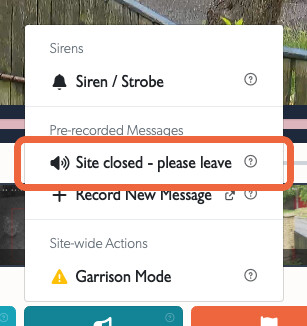
To add a message, click Record New Message at the bottom of the same Deterrence menu to record one on the spot, or upload and record them in the TetherBox Audio Challenge settings (step 1 above). Messages are shared across every camera on the site, so once added they are ready in both Live View and the operator console.
From Live View
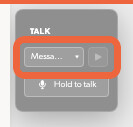
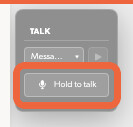
Every camera with a speaker output also has talk controls directly in Live View, so you do not need an open event to talk to site. Hover a camera tile to reveal the TALK panel in the corner, next to the PTZ and relay controls.
Pick a saved message from the dropdown and press play to send it to the camera's speaker:
Or press and hold Hold to talk to speak live, then release to send:
Cameras that have talkdown available are marked with a TALK badge in the camera picker, the same way PTZ cameras are marked.
From the operator console
While handling an event, the Two Way Talk tile sits in the operator console toolbar next to Deterrence. Press and hold it to talk. The hint under the label tells you how it works ("Hold to talk"), and the help ? in the corner shows which speaker your voice goes to.

Live hands-free two-way
On cameras with built-in echo cancellation (for example some Hikvision models) the control becomes a click-to-talk call instead of press-and-hold, so you can talk and listen hands-free at the same time, like a phone call. Other cameras use push to talk.
Registering an IP speaker
Most sites use the TetherBox 3.5mm jack or the camera's own speaker and can skip this. If you are using an IP speaker, for example an Axis network speaker, register it once from Devices (not the camera), then it can be chosen as the speaker output on any camera on that TetherBox.
- Go to Devices and open the speaker's device. It must already be on the same TetherBox network so it has been discovered.
- On the device page, find the IP Speaker card. Enter the speaker's Username and Password, turn on This device is an IP speaker, then click Save.
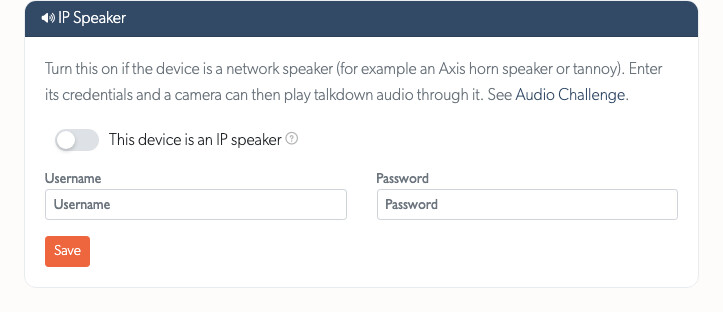
It then appears in the Speaker Output list on every camera on that TetherBox (see step 3 above).
Camera and speaker compatibility
Talkdown plays out of the camera's own built-in speaker on most major brands, either through the camera's native two-way audio or through the ONVIF Profile T audio backchannel. It also works with any camera when you route the audio to the TetherBox 3.5mm jack or an IP speaker instead, so the camera brand does not matter in that case.
Brands supported through the camera's own speaker:
Hikvision, Dahua, Axis, Hanwha (Wisenet / Samsung), Uniview, Milesight, Reolink, Mobotix, Avigilon, ACTi, Canon, Tiandy, Sunell, IDIS, ITX Security, HeroSpeed, CP Plus (Aditya Infotech), Zhuhai Raysharp (Lorex, Swann, Night Owl, Amcrest) and TVT (LTS, InVid, Avycon, Provision-ISR, Q-See).
Other cameras: any camera that supports the ONVIF Profile T audio backchannel can be used for talkdown, so most modern ONVIF cameras are covered even if the brand is not listed above. For cameras with no usable speaker, route the audio to the TetherBox 3.5mm jack or an IP speaker instead.
Door intercoms: 2N intercoms are supported over their audio backchannel.
IP speakers and PA systems: Axis network speakers, plus any speaker, tannoy or PA system connected to the TetherBox 3.5mm jack.
Tip: Don't see your camera, speaker or intercom? Request device compatibility.
Related Articles
Audio Recording - Record audio from camera microphones (different from talkdown)
How to Enable ONVIF - Enable microphone input on your cameras
Hardware Specifications - Audio jack connector specifications and technical details
Referenced in: