

Table of Contents
Video Checksum & Evidence Authenticity
A checksum is a digest calculated from a file's contents. A matching digest helps check that a downloaded file has the same bytes as the recording whose checksum TetherX stored.
New TetherBox recordings use SHA-256 and show sha256: before the digest. Older recordings may show a 40-character SHA-1 digest, labelled sha1: in the video details. Use the algorithm shown for that recording.
Why Checksums Matter
When presenting video evidence in court or to insurance companies, you may need to prove:
- The video has not been edited or altered
- The video came from a specific camera at a specific time
- The chain of custody is intact
TetherBox calculates the checksum when it creates a recording and sends it to the cloud. Compare a downloaded file with the checksum in the recording details. A match alone does not establish the camera source, recording time, chain of custody or authenticity of the cloud record; those need the related records and evidence handling.
Finding the Checksum
- Go to the Events page
- Click on the event you want to verify
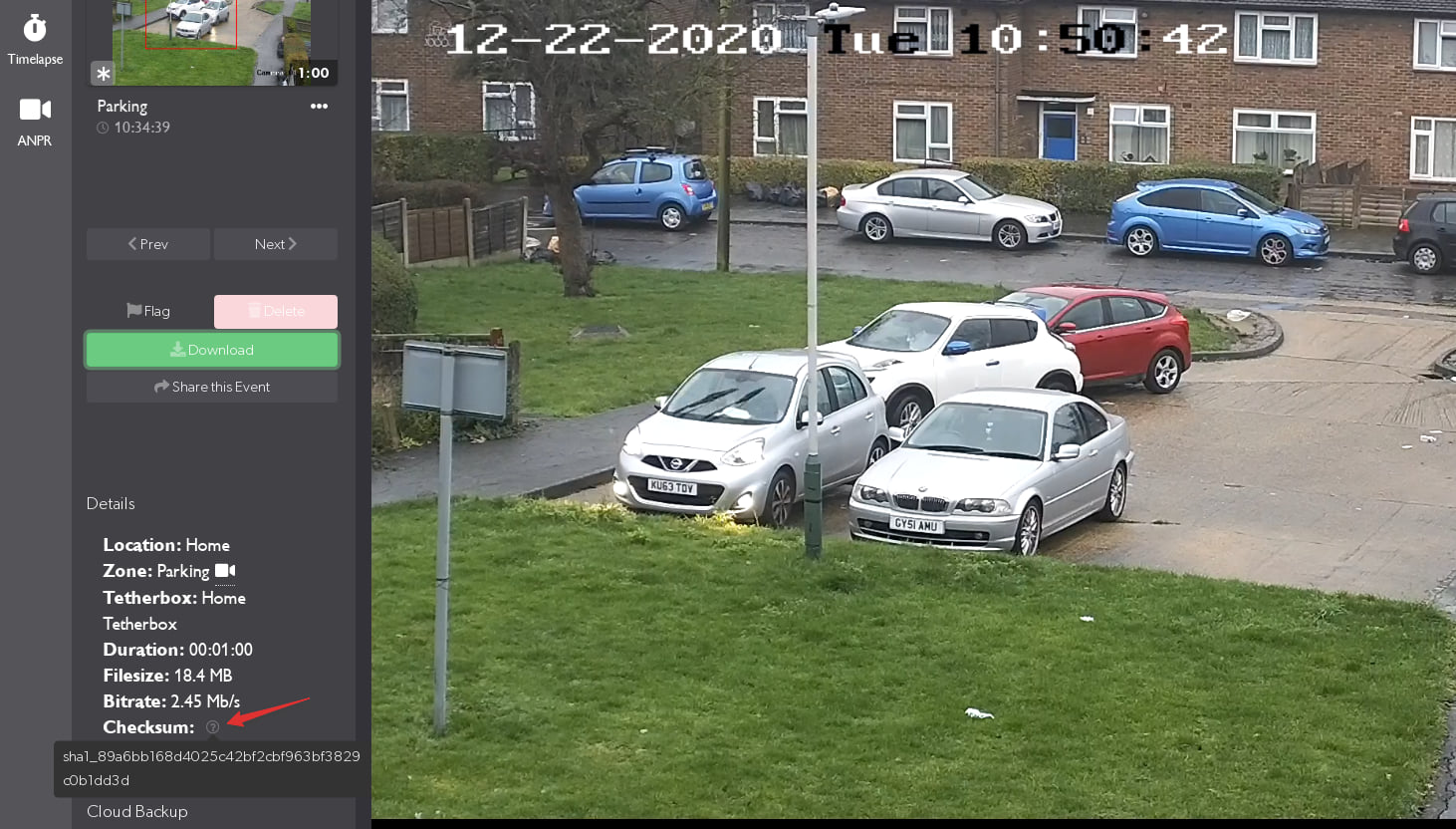
- Hover over the question mark icon next to the video details
The checksum is displayed along with other metadata (duration, file size, bitrate).
Verifying a Downloaded Video
After downloading a video, you can verify it matches the original by calculating its checksum locally.
Windows (Command Prompt)
- Open Command Prompt (press
Windows + R, typecmd, press Enter) - Navigate to your Downloads folder:
cd %USERPROFILE%\Downloads
- Calculate the checksum using the algorithm shown in TetherX. For a
sha256:checksum:
certUtil -hashfile filename.mp4 SHA256
For a legacy sha1: checksum, use SHA1 instead. Replace filename.mp4 with your actual video filename.
Windows (PowerShell)
Get-FileHash -Algorithm SHA256 filename.mp4
For a legacy sha1: checksum, use -Algorithm SHA1.
Mac / Linux (Terminal)
shasum -a 256 filename.mp4
For a legacy sha1: checksum, use shasum -a 1.
Comparing Checksums
Compare the digest characters, ignoring the sha256: or sha1: label and any spaces in the tool output. A match means the downloaded file matches the checksum stored for that recording. It does not, on its own, prove who created the recording or that the stored checksum has not been altered.
Example of matching checksums:
- TetherX shows:
sha256:ba7816bf8f01cfea414140de5dae2223b00361a396177a9cb410ff61f20015ad - Your calculation:
ba7816bf8f01cfea414140de5dae2223b00361a396177a9cb410ff61f20015ad
The displayed digest matches in this example. Compare the value for your own recording and file.
Example of non-matching checksums:
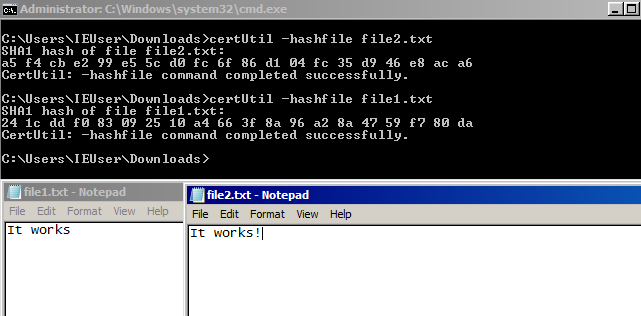
If the checksums don't match, either:
- The file was modified after download
- The file was corrupted during download
- You're checking the wrong file
For Legal Proceedings
If you provide TetherX with a checksum (or even the video file itself), we can confirm:
- Whether a supplied file's checksum matches the checksum currently stored for that recording
- The start and end times recorded by TetherX
- The access history available in the Audit Log
Tip: For forensic evidence requests, contact us about our extraction service and the records available to establish provenance and chain of custody.
Timestamp Reliability
TetherBoxes synchronise camera clocks, but timestamp reliability also depends on the camera, network and recorded clock state. Keep those details with the evidence when timing matters.
Related Articles
- Events - Find and download video footage
- Audit Log - Track who accessed footage
- TetherBox Time Synchronisation - How TetherX ensures accurate timestamps
Referenced in: