

Table of Contents
Setting Up ANPR Cameras
TetherX stores and searches licence plate information from compatible ANPR Cameras. View plate numbers alongside video Events, count vehicles per day, manage whitelists and blacklists, and create advanced automation rules.
Compatibility
TetherX supports most ANPR/ALPR/LPR cameras with built-in licence plate recognition. The camera must have licence plate recognition functionality built in -cameras that only classify vehicles without reading plates are not suitable.
Supported Manufacturers
- Hikvision - Native API support for DS and iDS ranges.
- Dahua - Native API support for firmware versions from 2018 onwards.
- ONVIF - Most ANPR cameras with ONVIF Profile S compatibility, including Axis and Milesight.
Tip: Check the Camera Compatibility list for supported devices. If your camera isn't listed, it's probably still supported - contact us with your manufacturer and model number to confirm.
Tested Models
These models are tested in-house. All other ANPR models from these manufacturers are also supported:
| Manufacturer | Model | Firmware Version |
|---|---|---|
| Hikvision | DS-2CD4A26FWD-IZS/P | V5.4.5 build 170731 |
| Hikvision | DS-2CD7A26G0/P-IZHSWG | V5.6.10 build 210112 |
| Hikvision | iDS-TCM403-BI | V5.0.2 230315 |
| Dahua | ITC237-PF1A-IR | V02.0000.1.R build 2017-2-28 |
Warning: Dahua firmware ITC237-PF1A-IR V01.0000.1.R.2017-06-06 has known bugs. Update to a newer version.
Setup Process
Step 1: Access Camera (Optional)
If off-site, use Tunnelling to access your camera's web interface remotely.
Step 2: Configure Standard Hikvision/Dahua Cameras
Log into your camera's web interface and configure two settings:
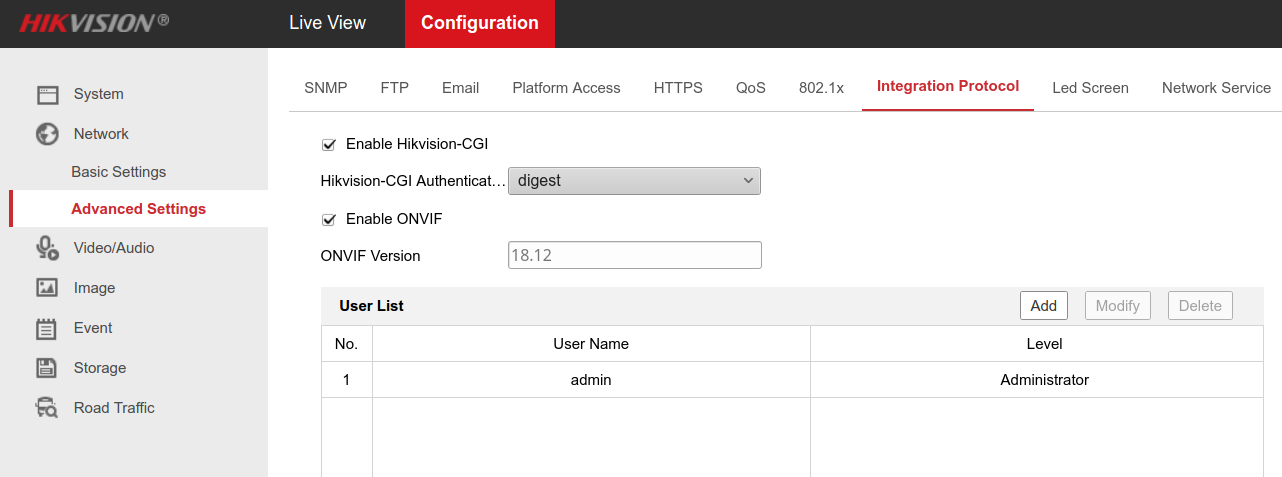
Integration Protocol Settings
Navigate to Network → Advanced Settings → Integration Protocol:
- Enable Hikvision-CGI
- Verify a user account exists in the User List
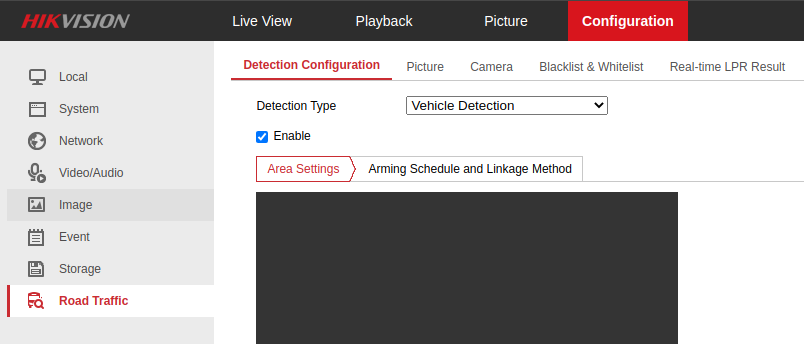
Road Traffic Settings
Navigate to Road Traffic → Detection Configuration:
- Set Detection Type to Vehicle Detection
- Tick Enable
Tip: Settings may differ by camera model and firmware version. Refer to your manufacturer's documentation if options vary.
Step 3: Configure iDS Cameras
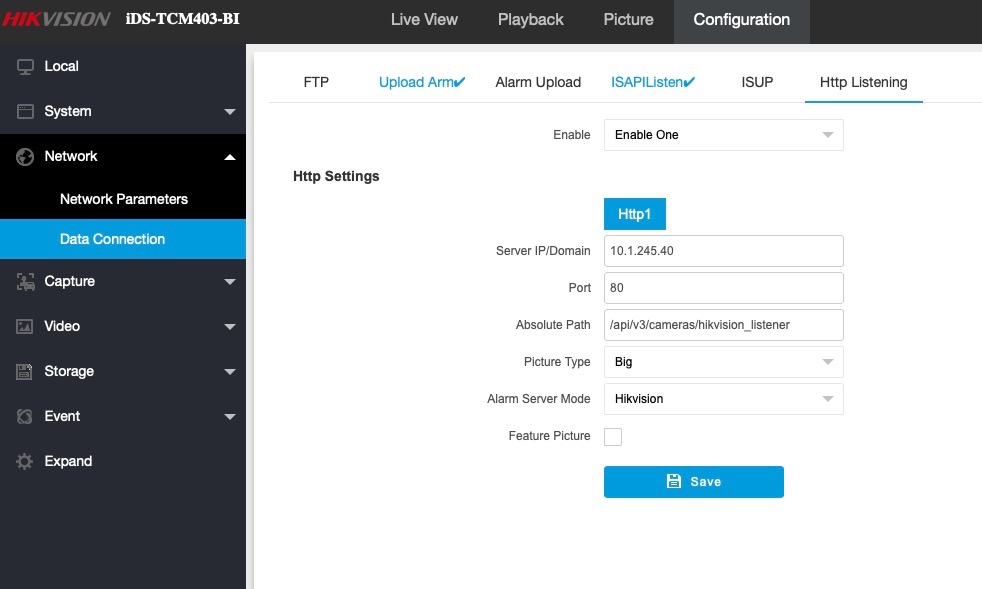
iDS models work differently -they push licence plate data to TetherBox rather than being polled. Configure the camera to send data to your TetherBox:
Newer Firmware (Network → Data Connection → Http Listening):
Older Firmware (Configuration → Network → Advanced Settings → Alarm Server):
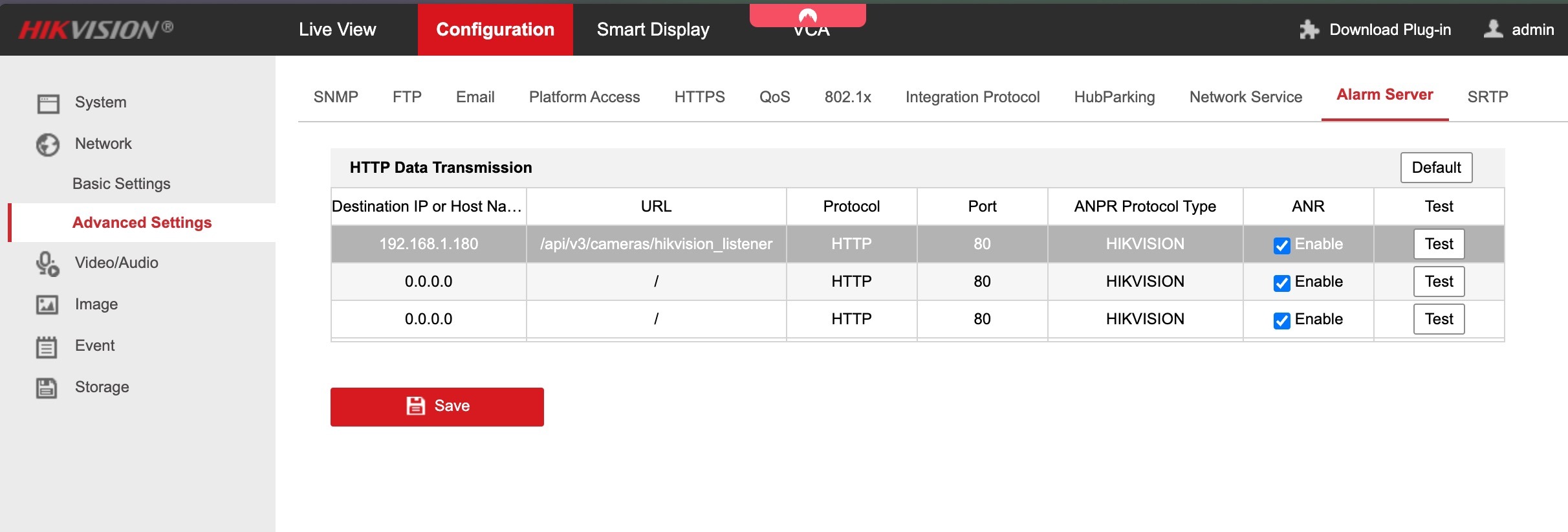
Enter these values:
| Setting | Value |
|---|---|
| Server IP / Destination IP | Your TetherBox's local IP address |
| Port | 80 |
| Absolute Path / URL | /api/v3/cameras/hikvision_listener |
| Alarm Server Mode / ANPR Protocol Type | Hikvision |
Click Save, then Test. You should see "The service is available":
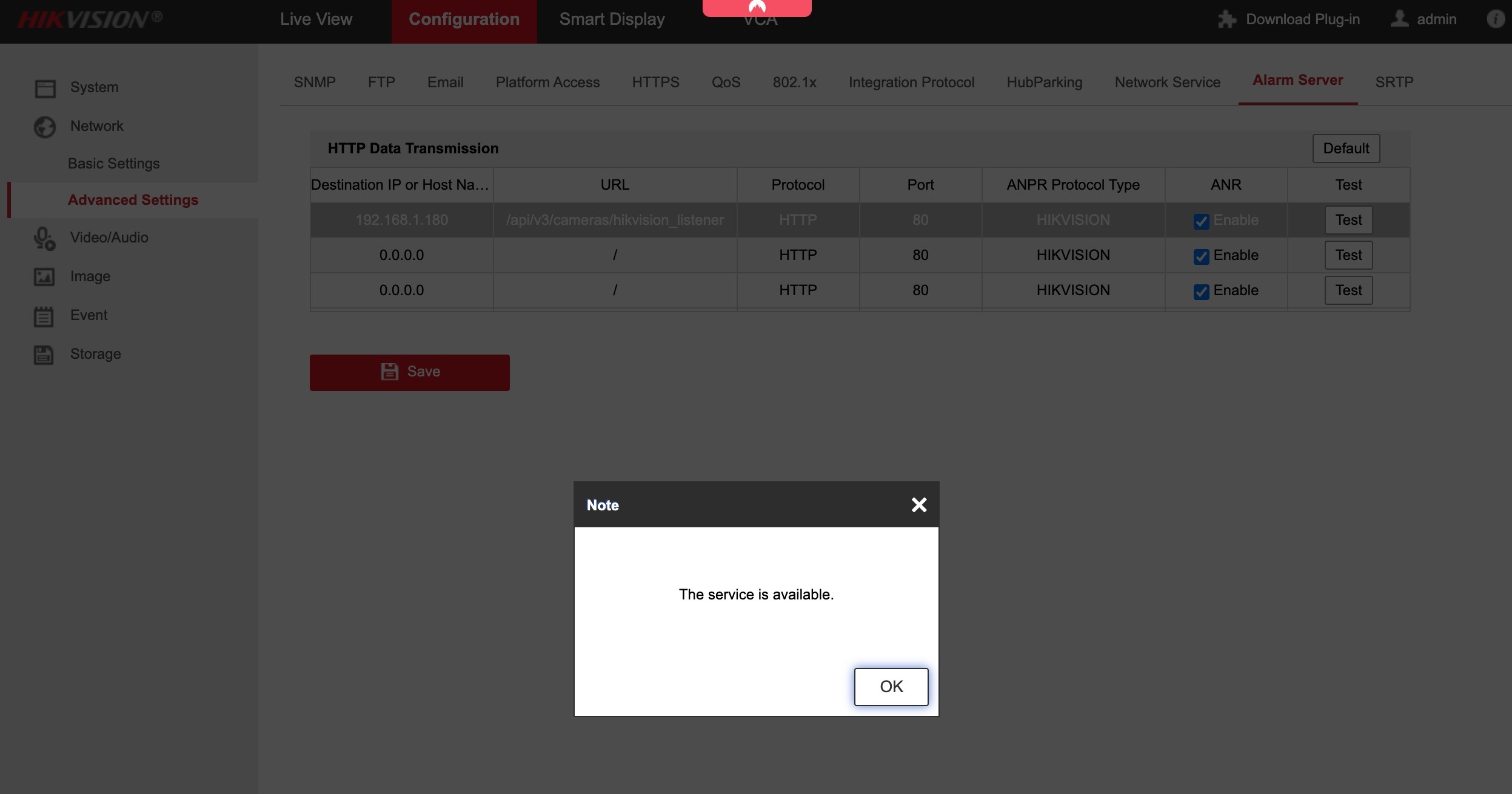
Warning: The Test button only works after saving your configuration. Ensure you use the TetherBox IP on the same network as your camera.
Tip: iDS cameras require firmware V5.0.2 230315 or newer.
Using ANPR
Once configured, your camera automatically detects vehicles and licence plates.
Access the ANPR Interface
Click More in the navigation menu and select ANPR:
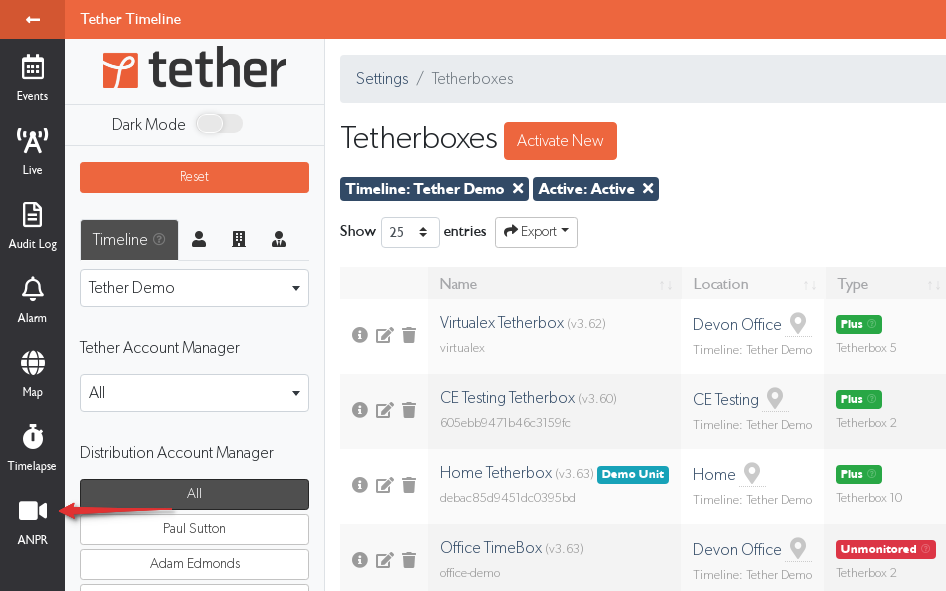
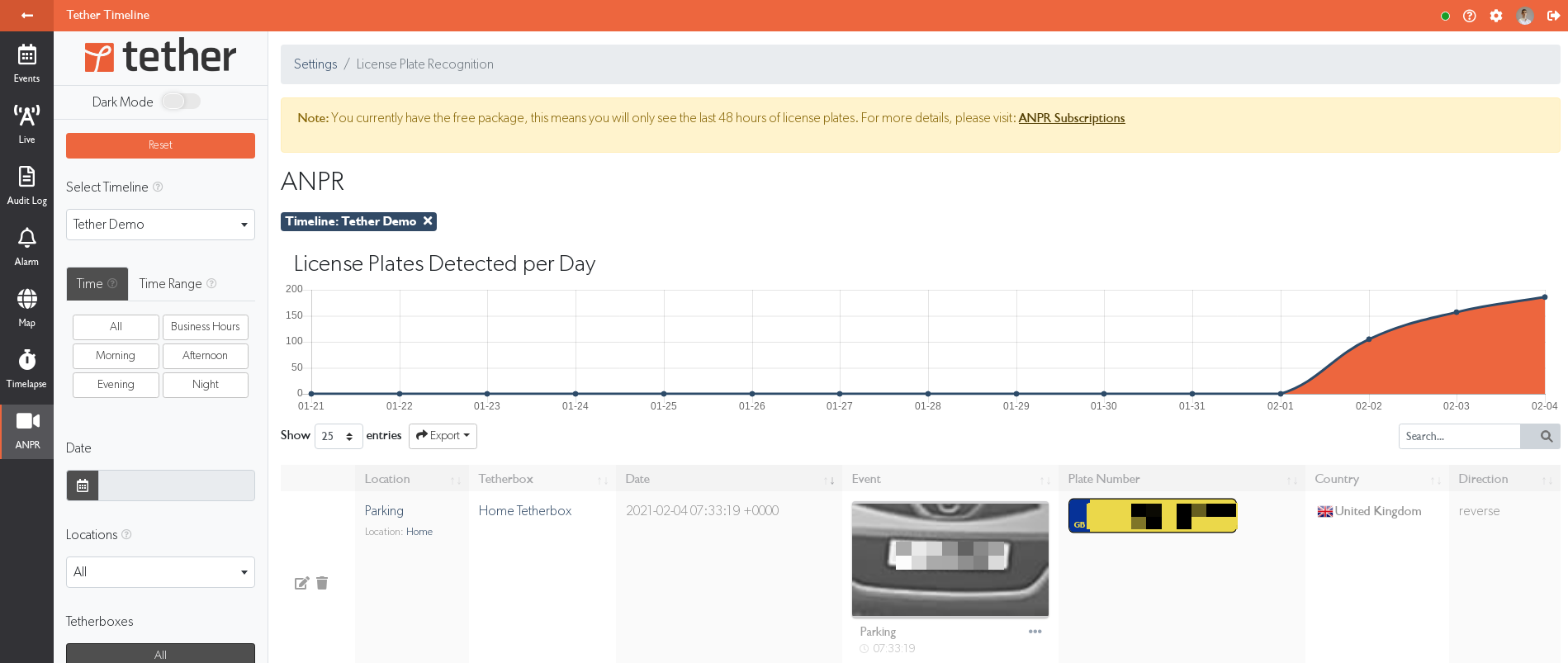
The ANPR page shows:
- Vehicle movements graph - Daily Entering, Leaving, Unknown and captured vehicle-violation events.
- Plate data table - Location, TetherBox, date, event thumbnail, plate number, country, and direction.
If an ANPR camera reports the front or rear of a vehicle but no travel direction, open that camera's Advanced Settings and set ANPR Travel Direction after confirming which side faces vehicles entering the site. New reads are classified when stored; earlier reads stay Unknown. Ambiguous reads remain Unknown.
Manage Whitelists & Blacklists
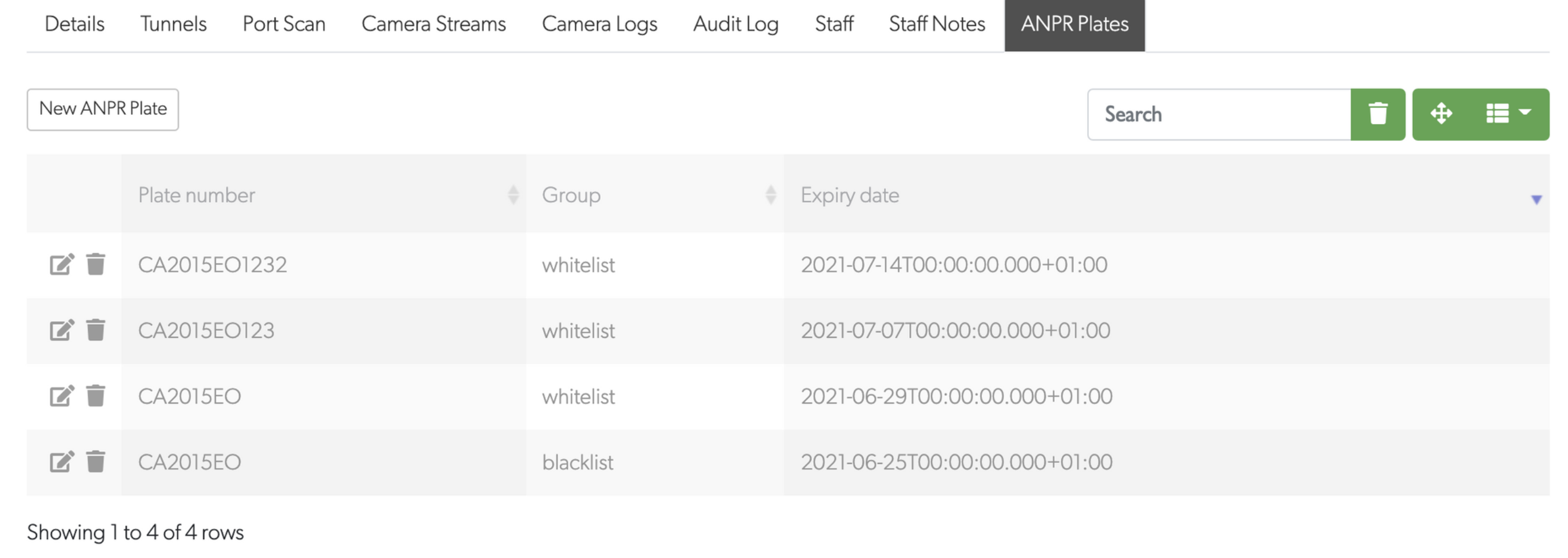
- Blacklist plates - Trigger notifications for all users with notifications enabled.
- Whitelist plates - Enable custom automation such as gate opening.
- Expiry dates - Optional automatic deactivation.
For advanced features like automated gate control, see ANPR Whitelist with IP Relay or contact us.
Related Articles
- How to Enable ONVIF - ONVIF protocol setup
- ANPR Whitelist with IP Relay - Gate automation
- Matrix Displays - LED displays for ANPR
- Tunnelling to Network Devices - Remote camera access
- Notifications - Configure alert delivery
Referenced in: